Your Account
This page covers your profile, your password, the avatar menu, logging out, and the tools for viewing, exporting or deleting the personal data Simple Wires stores about you.
The avatar menu
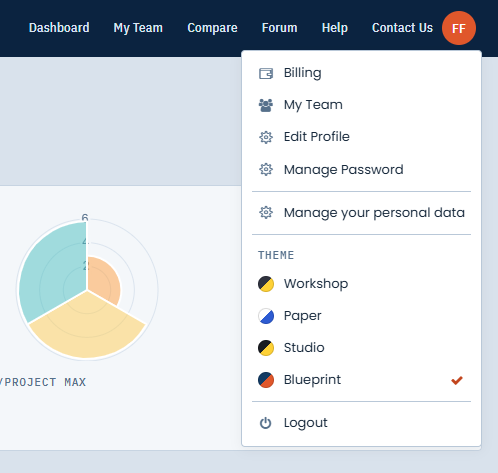
Your avatar is the circle with your initials at the top right of every page. It shows the first letters of your first and last names, or the first letter of your email if you haven’t entered a name. Hover over it to see the email you sign in with. Click it to open the menu.
On the Projects Dashboard and other account pages, the menu has:
- Upgrade: only on the Free plan. Opens the plan list. See Billing and Plans.
- Billing: your subscription, card and invoices. Not shown if a team owner pays for your account.
- My Team: only if you have a team role. See Teams.
- Edit Profile and Manage Password: see below.
- Manage your personal data: see Your personal data.
- Theme: see Themes and Appearance.
- Logout.
In the drawing editor, the menu is shorter: Upgrade (Free plan only), Projects Dashboard, Billing, Manage Password, Theme and Logout.
The forum has the same avatar and the same menu, with its own Forum section for your forum profile and private messages.
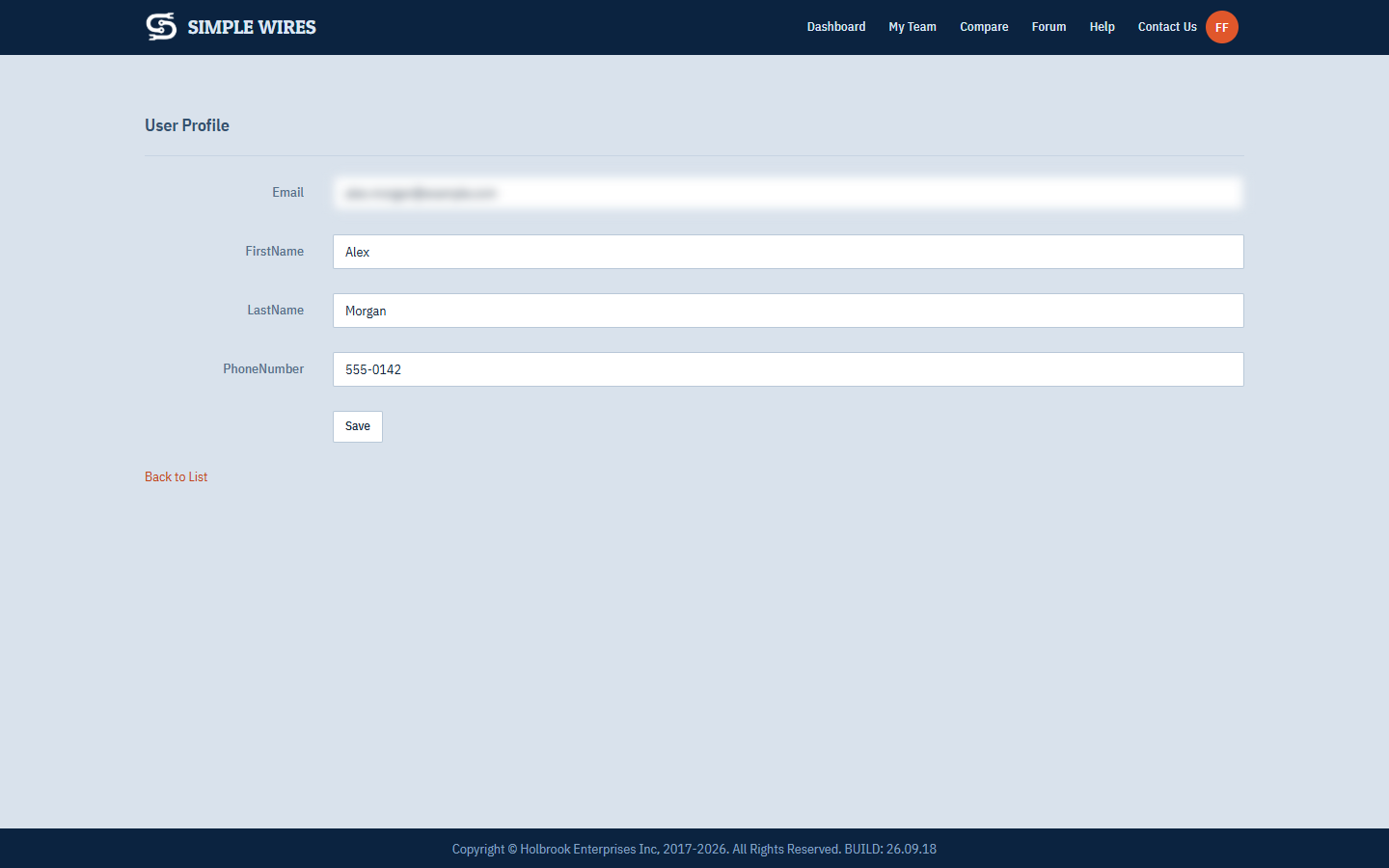
Edit your profile
- Open the avatar menu and choose Edit Profile.
- Change your email, first name, last name or phone number.
- Click Save.
You return to the Projects Dashboard.
Your email is also your sign-in name. When you change it:
- The new address can’t already belong to another Simple Wires account.
- Simple Wires emails a notice to both your old and new addresses.
- Your projects, including ones shared with you, update to the new address.
- The sign-in page opens with “You have changed your email. Please log in with the new email.” Sign in with the new address.
On the Free plan you can’t change your email. The Email box is greyed out, with the note “You cannot edit your email in the Free version.”
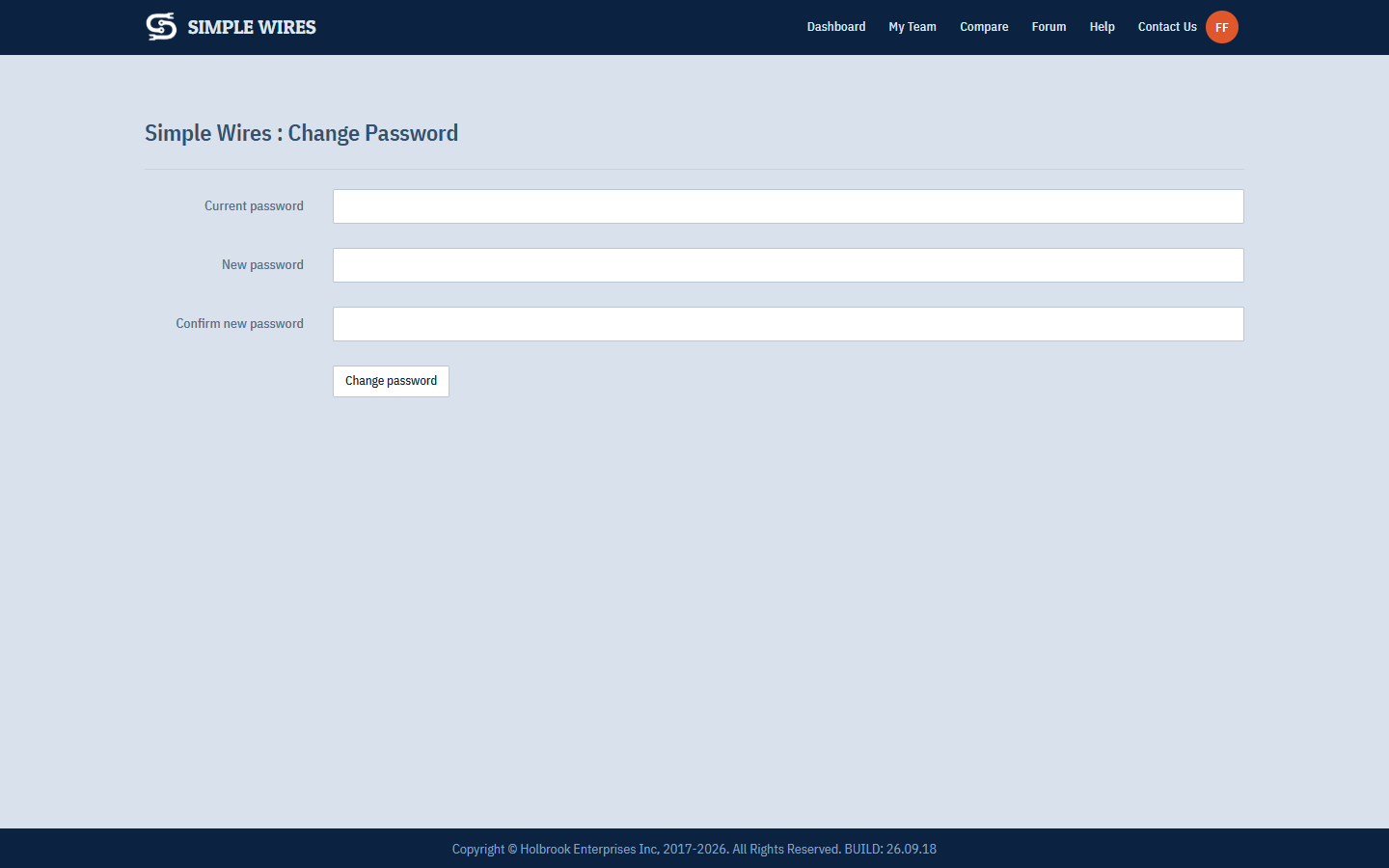
Change your password
- Open the avatar menu and choose Manage Password.
- Enter your Current password.
- Enter a New password of at least six characters, then enter it again in Confirm new password.
- Click Change password.
You stay signed in and return to the Projects Dashboard.
In the drawing editor, Manage Password opens the Manage page instead. Click Change your password there. The same page has View/Edit/Cancel your subscription, which opens the Billing page.
If you forget your password, click Forgot your password? on the sign-in page. After five failed sign-in attempts in a row, your account locks for five minutes. If you’re on a team, your team owner or manager can unlock you from the My Team page.
On the sign-in, registration and password reset pages, click the eye at the right of a password box to show what you’ve typed, and click it again to hide it.
Log out
Open the avatar menu and choose Logout. You’re signed out and taken to the Simple Wires home page.
If you log out from the editor while a drawing has unsaved changes, your browser warns you before it leaves the page. Cancel, save the drawing, then log out.
Log out
Open the avatar menu and choose Logout. You’re signed out of Simple Wires and the forum at the same time, and you land on the Simple Wires home page.
When the terms change
When the Terms and Conditions change, you’re asked to accept them again the next time you open a page that needs you signed in. The page says what’s new and links to the terms and the privacy policy. Tick I have read and accept the terms and conditions and click Accept and continue to carry on where you were going, or click Sign out. You can’t use Simple Wires until you accept.
Each person accepts for themselves: a team owner can’t accept for their members.
Your personal data
The Your GDPR Tools page gathers everything you can do with the personal data Simple Wires stores about you. To open it, choose Manage your personal data from the avatar menu.
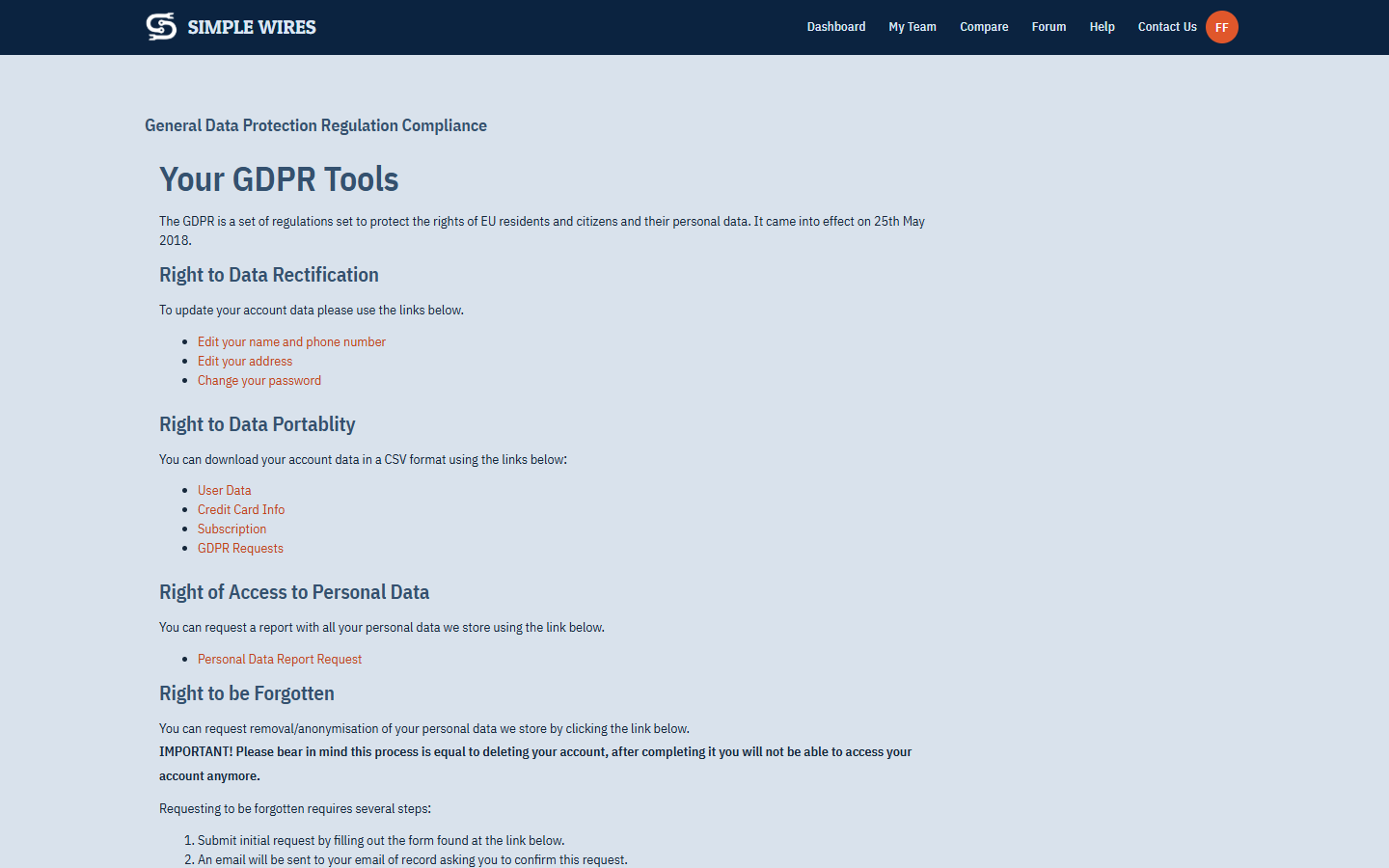
Correct your details
Under Right to Data Rectification:
- Edit your name and phone number opens Edit Profile.
- Edit your address opens Address, the billing address saved with your payment card. Change the address lines, city, state, post code or country, then click Save. The change also goes to Stripe, the card processor.
- Change your password opens Change Password.
Download your data
Under Right to Data Portablity, each link downloads a CSV file:
- User Data: your name, email, phone number, registration and last sign-in dates, the IP address and country recorded for your account, and your newsletter and terms choices.
- Credit Card Info: the card name, billing address, expiry date and last four digits. The full card number isn’t stored, so it isn’t in the file.
- Subscription: your plan, subscription status and dates, and your invoices.
- GDPR Requests: the log of data requests and account changes Simple Wires has recorded for you.
Request a personal data report
Under Right of Access to Personal Data, you can ask for one report with all of the above.
- Click Personal Data Report Request.
- Enter your account Email. It has to match the email you’re signed in with.
- Complete the “I’m not a robot” check, then click Submit.
- Open the “Simple Wires GDPR Report Request” email and click Confirm Report Request. Make sure you’re signed in to Simple Wires as the same user first.
Simple Wires emails you the report as a CSV attachment named gdpr_report.csv.
Delete your account (right to be forgotten)
Under Right to be Forgotten, you can have your account deleted and your remaining personal data anonymized. It’s the same process as Cancel Subscription on the Billing page.
Deleting your account is permanent. Your projects and drawings are deleted and you can no longer sign in. To stop paying but keep your work, change to the Free plan instead.
For your protection, deletion takes several steps:
- Click Personal Data Deletion Request. The Cancel Account and Forget Me page opens. If you’d rather keep your work, click Change Plan and choose the Free plan.
- Enter your account Email, complete the “I’m not a robot” check, and click Submit. Simple Wires emails you a “Simple Wires Account Cancellation Request”.
- In the email, click Confirm Request. If you aren’t signed in, the sign-in page opens first.
- The final confirmation page lists what will happen. Enter your Email again, complete the check, and click Submit.
When you submit the final confirmation, Simple Wires:
- Cancels your subscription, with no refund for any credit due.
- Removes your saved card from Simple Wires and Stripe.
- Deletes your projects and all their drawings.
- Deletes your user account from Simple Wires and Stripe.
- Keeps a record of your request and when and how it was made.
- Logs you out.
You won’t get any further emails about the request. It doesn’t remove records of payments you’ve made, the record of your data requests, anything you contributed to the Master Library, or the cookies in your browser.