Teams
A Team plan lets one account owner bring other people into Simple Wires, group them into teams, and control what each person can do in each project. You manage all of this from the My Team page.
To open it, click My Team in the menu bar of the Projects Dashboard, or open the avatar menu and choose My Team. The page is only there when your account has a team role, which means you own a Team plan or belong to someone else’s.
How teams work
- The team owner holds the Team plan subscription and pays for it. When you move to a Team plan, Simple Wires makes you the owner and creates a first team called “My Team”.
- A team holds projects and members. A member can belong to several teams, and a project can belong to several teams.
- Every member has an account role. When a member joins a team, they get access to every project in that team with that role. You can lower a member’s role in a single project without changing it anywhere else.
- Members you add get accounts that belong to your subscription, and each one counts toward your plan’s manager, user or viewer limit. See Plans.
Roles
Simple Wires has six roles, from most to least access. The role names appear in capitals in the app.
| Role | Counts as | What the role can do |
|---|---|---|
| TEAM OWNER | Owner | Everything. Only the owner can create and delete teams, and sign in as another member (Impersonate). The owner can’t be removed from a team, deleted, or given a different role. |
| TEAM MANAGER | Manager | Uses the same My Team tools as the owner for the teams they manage: adds and removes members and projects, and changes roles. Can’t create or delete teams. |
| POWER USER | User | Creates projects and drawings, and edits drawings in team projects. Sees a read-only My Team page. |
| EDITOR | User | Creates, edits and deletes drawings in team projects. Sees a read-only My Team page. |
| POWER VIEWER | Viewer | Opens team projects read-only. |
| VIEWER | Viewer | Opens team projects read-only. |
The Counts as column shows which plan limit the role uses. Power Users and Editors count as users. Power Viewers and Viewers count as viewers.
For each role’s full permission set, including printing, exporting and inviting to projects, open the Roles & permissions tab on the My Team page.
The My Team page
What you see depends on your role.
If you’re the owner or a manager
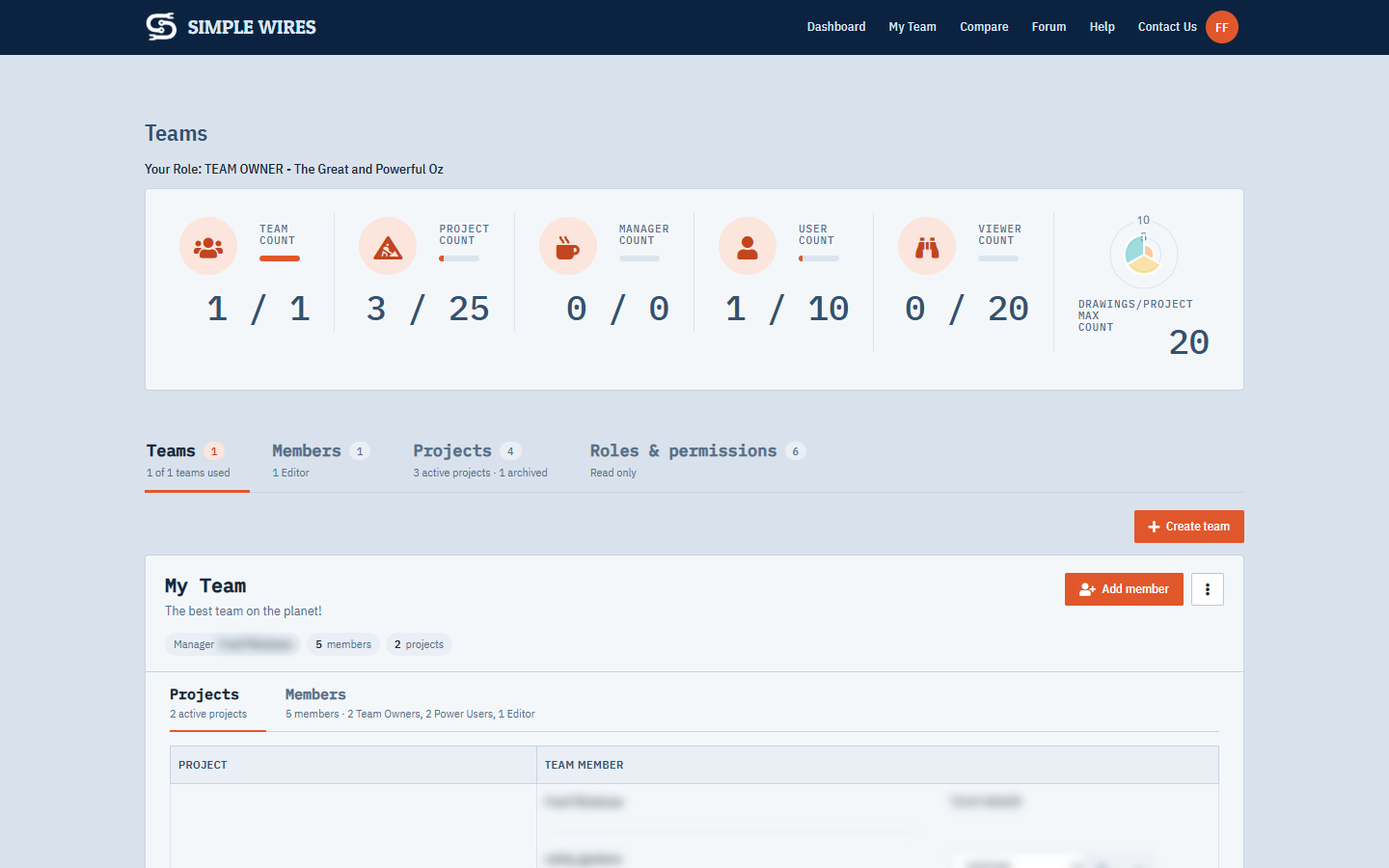
The top of the page shows Your Role, then a row of counters. Each shows how many you’re using and how many your plan allows:
- Team Count: teams you’ve created.
- Project Count: active projects. Archived projects don’t count.
- Manager Count, User Count and Viewer Count: members in each group across all your teams.
- Drawings/Project Max Count: the most drawings your plan allows in one project.
Below the counters, the page is divided into tabs. Each caption shows a count and a line saying what’s inside, such as 3 members · 1 Team Owner, 2 Users:
- Teams: a card for each team you own or manage, and Create team.
- Member Controls: every member of your teams, with account-wide tools. See Members you own and guests.
- Projects: every project on your account, where you add projects to teams.
- Roles & permissions: the read-only table of what each role can do.
The tab you were last on opens again the next time you come back.
Members you own and guests
Every member shows who owns their account:
- Team member reporting to you: the member is on your subscription. You added them, or took over their Free account. You can change their role, add them to teams and projects, impersonate them, unlock them and delete them.
- Guest of you: the member joined one of your teams because a project shared with them was added to it. They keep their own account; point at the label to see whose. You can remove a guest from your teams, but you can’t delete them, change their role or add them to more teams. Guests don’t count toward your plan’s limits.
If you’re a Power User, Editor or viewer
The page is for reference only. It shows your default role, the counters that apply to you, and two tabs: Teams, with a card for each team you belong to, and Your roles & permissions. Each team card lists the team’s projects and the role every member has in them. Your owner or manager can change your role one project at a time, so your role in a project can be lower than your default role.
Create a team
Only the team owner can create teams, up to the plan’s team limit plus any team add-ons.
- On the My Team page’s Teams tab, click Create team.
- Enter a Name and a Description.
- Click Create.
The new team starts with you as its only member and its manager. If your plan has no teams left, a message sends you to the Billing page to buy more.
Work with a team card
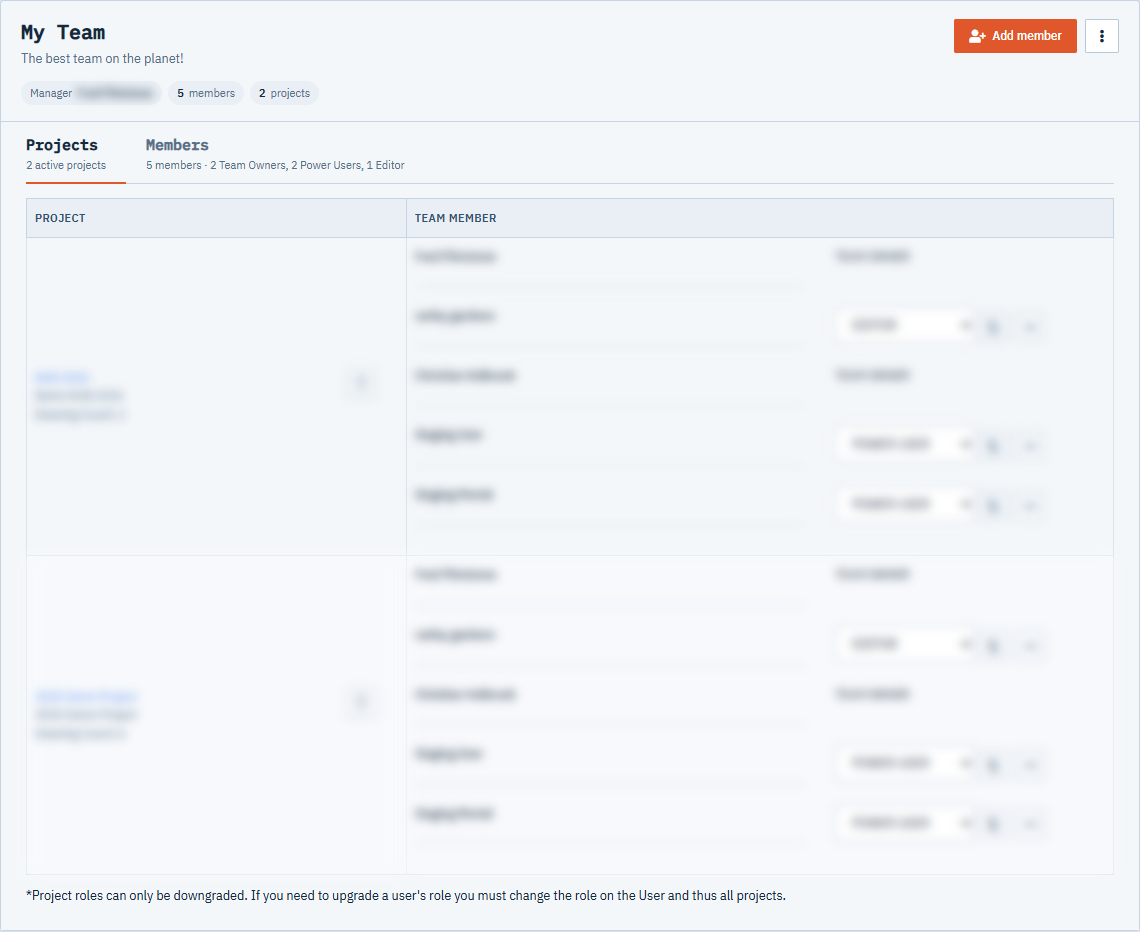
A team card shows the team’s name and description, then its manager, how many members it has and how many projects, and these commands:
- Add member: see Add a new member.
- ⋮, for the rest:
- Edit name, description and manager: change the team’s Name, Description and Team Manager, then click Save. The Team Manager list contains you and every member whose role is TEAM MANAGER.
- Delete team (owner only): opens a confirmation page. Click Delete to delete the team. This can’t be undone.
Each card has two tabs of its own, Projects and Members, each showing what it holds.
Projects lists each project in the team with its description and drawing count. Click a project name to open it in the editor. Next to each project:
- Remove Project From Team (trash) opens a confirmation page. Click Remove to take the project out of the team. Every team member except the owner loses access to it, and team members get an email.
- The Team Member column lists everyone in the project. For each member except the owner:
- Pick a role from the list and click the change button to set their role in this project only. The list only offers roles at or below the member’s account role. To raise a member’s role, change their account role instead (see Change a member’s role).
- Click the minus button to remove the member from this project. There’s no confirmation. The member loses access to the project in every team that includes it.
Members lists each member’s name, email and whether you own their account or they’re a guest (see Members you own and guests). Owned members come first. Click Remove this Team Member from this Team (trash) to remove them, as described in Remove or delete a member.
Add a new member
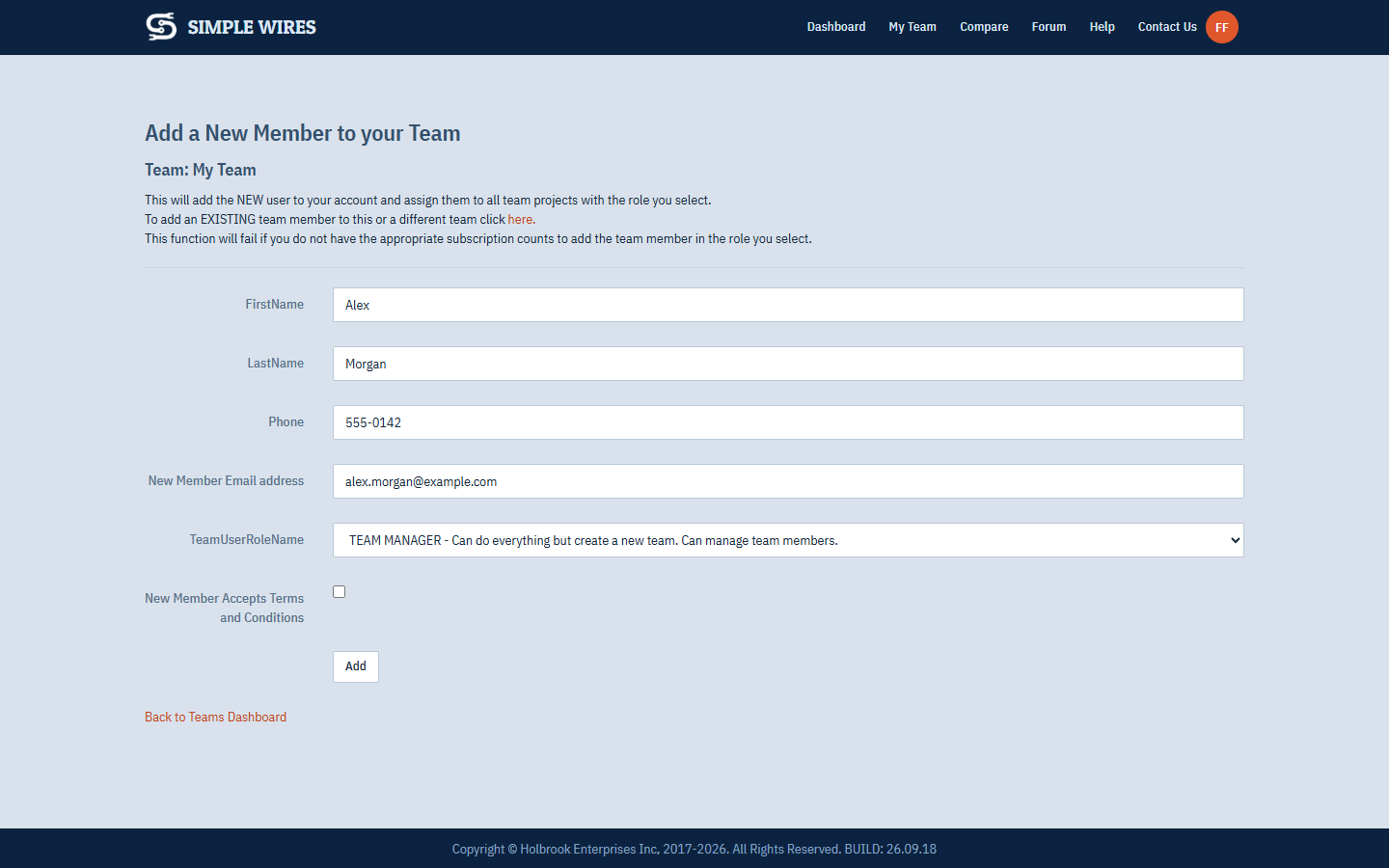
Use this to invite someone who doesn’t have a Simple Wires account yet.
- On the team’s card, click Add member.
- Enter the person’s first name, last name, phone number and New Member Email address.
- Choose their role. Every role except TEAM OWNER is available.
- Click Add.
Simple Wires creates the account, adds it to the team and to every project in the team with the role you chose, and emails the new member a “Simple Wires Team Invitation” with a link to set their password. Other team members get an email that someone has joined.
The new member accepts the Terms and Conditions themselves, on the page where they set their password. If they skip it there, they’re asked when they first sign in, and they can’t use Simple Wires until they accept.
If your plan has no room left for another member in that group (manager, user or viewer), you get a message instead. You can buy more capacity with add-ons on the Billing page.
If the email already belongs to an account:
- A member of your account: they’re added to this team with the role you chose.
- A Free account: Simple Wires offers I Agree to Take Ownership of this subscription. Select it and click Add again to move that account onto your subscription and into the team. You then manage the account and pay for it.
- A paid account, or a member of another owner’s account: you can’t add them to your team. Invite them to a project with project sharing instead.
Add an existing member to another team or project
Use the Member Controls tab to put someone already on your account into another team or project. This only works for members you own.
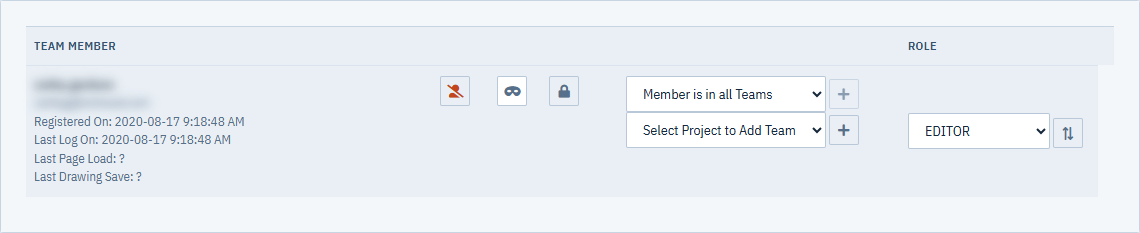
- Add to a team: choose a team from Select Team to Add Team Member to, then click the + button next to it. If the member is already in every team, the list says Member is in all Teams.
- Add to a single project: choose a project from Select Project to Add Team Member to, then click the + button next to it. Archived projects aren’t listed. The member gets their account role in that project.
Team members get an email about the change.
Change a member’s role
To change a member’s role everywhere, go to the Member Controls tab. In the Role column, pick a new role and click the change button next to it. A guest’s role belongs to their own account, so you can’t change it here.
Simple Wires changes the member’s account role and their role in every active project, then emails the member’s teams. Before it does, it checks that:
- Your plan has room in the new role’s group (manager, user or viewer).
- The member isn’t the team owner. The owner’s role can’t change.
- The member isn’t a Team Manager who still manages a team. Pick a different Team Manager for those teams first.
To change a member’s role in one project only, use the Projects tab on the team’s card. See Work with a team card.
Remove or delete a member
There are three ways to take someone out, each going further than the last.
- Remove from one project: on the Projects tab of a team’s card, click the minus button next to the member.
- Remove from a team: on the Members tab of a team’s card, click Remove this Team Member from this Team, or on the page’s Member Controls tab, click the × on the team’s name under the member. Then click Remove from Team. The member leaves the team and loses access to its projects. Their account stays. Members who aren’t in any team don’t count toward your plan limits. You can remove owned members and guests, but not the team owner.
- Delete from the system: on the page’s Member Controls tab, click Delete Team Member from System (person with a slash). On the confirmation page, click Delete this Account Now!. The account is removed from every project and team, and from Simple Wires. This can’t be undone. Only members you own can be deleted. You can’t delete the team owner or a guest.
Deleting a member deletes their account. If you only want to stop them from reaching your projects, remove them from the team instead.
Other member tools
The Member Controls tab also shows each owned member’s registration date, last login, last page load and last drawing save. These tools are for owned members only.
- Unlock: after too many failed sign-in attempts, a member is locked out and an unlock button appears next to their name. Click it to let them try again. When the member isn’t locked out, the button shows a closed lock and does nothing.
- Impersonate (owner only): signs you in as the member so you see exactly what they see, without their password. When you’re finished, log out and sign back in with your own account.
Add projects to a team
Projects you create aren’t in any team until you add them.
- Open the page’s Projects tab. It lists every project on your account and shows whether each one is active or archived.
- For an active project, choose a team from Select Team to Add Project to.
- Click the + button next to it.
Everyone in the team gets access to the project with their account role, and anyone already in the project joins the team. Team members get an email. Archived projects can’t be added to a team.
People who were in the project because it was shared with them keep their own accounts. They join the team as guests: they show on the team’s card and on the Member Controls tab, marked Guest, and they don’t count toward your plan’s manager, user or viewer limits.
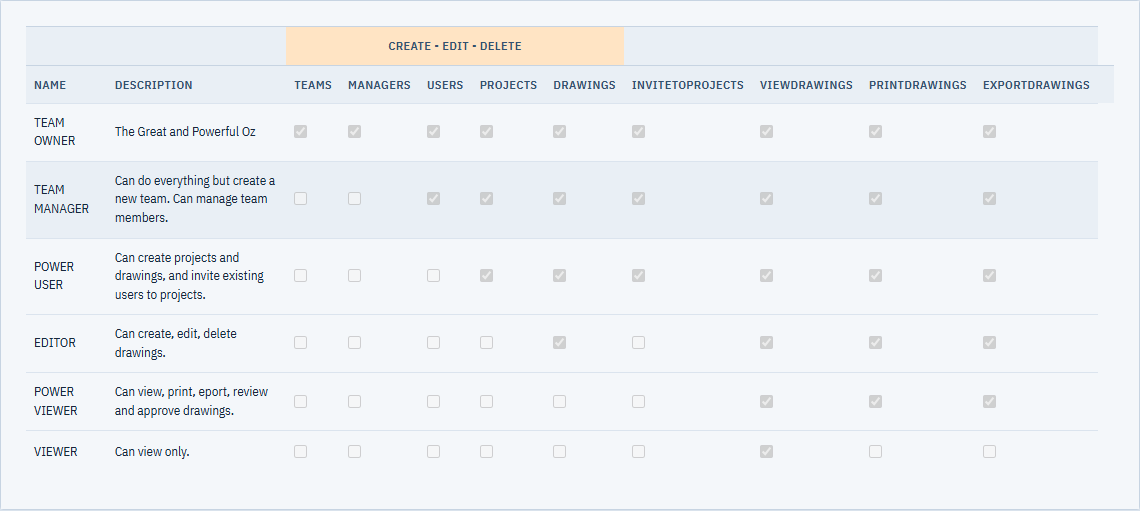
The Roles & permissions tab
Roles & permissions is read only. It lists every role with its description and a tick for each permission:
- Under Create - Edit - Delete: Teams, Managers, Users, Projects and Drawings.
- InviteToProjects, ViewDrawings, PrintDrawings and ExportDrawings.
You can’t change these permissions. They’re there so you can check what a role allows before you assign it. Members who aren’t owners or managers see Your roles & permissions instead, which only lists the roles they hold. Their role can be lower in some projects, as the tab’s caption says.
Team email notifications
Team members get emails when people join or leave, when roles change, and when projects are added to or removed from a team. To choose which emails you get, click Config on the Projects Dashboard. Set the options under Team email notifications, then click Save settings.
Master Library contributions
Whether printing and exporting add equipment to the Master Library is the team owner’s choice, and it applies to everything every member prints or exports. The owner sets it on their Config page under Master Library; members see the owner’s setting there but can’t change it. See Contributing automatically.