FAQ and Troubleshooting
Answers to common questions, with links to the topics that cover each one in detail. If you’re still stuck, ask on the forum (Help > Forum) or send your drawing to support (see How do I send a drawing to support?).
Drawing
How do I add equipment to the drawing?
Either:
- Drag a Functional Block Prototype from the list on the left into the drawing, then name its ports and connectors. See Functional Blocks and Ports.
- Search the Master Library for the equipment and add it as a functional block, rack panel or rack. See Master Library and Warehouses.
How do I draw a cable?
- Place two pieces of equipment that have ports.
- With the select tool active, point at a port until the pointer changes to a hand.
- Drag from that port to a port on the other piece of equipment.
When the cable is numbered it takes the color of its signal type. See Drawing Cables.
Why aren’t my wires sticking when I move a block?
The cable was probably drawn with the polyline tool. A polyline is only a line: it isn’t connected to any port and carries no cable data, so it stays put when you move the block.
Delete the polyline, switch back to the select tool, and drag a cable from port to port as described above. See Drawing Cables.
I dropped equipment in a rack and it stuck. How do I unstick it?
Panels you drop into a rack attach to it. To detach a panel, either:
- Right-click the panel and click Detach, or
- Hold Shift and drag the panel out of the rack.
To detach every panel at once, right-click the rack and click Detach all. See Racks and Rack Panels.
Why are my rack panels not showing in my bill of materials?
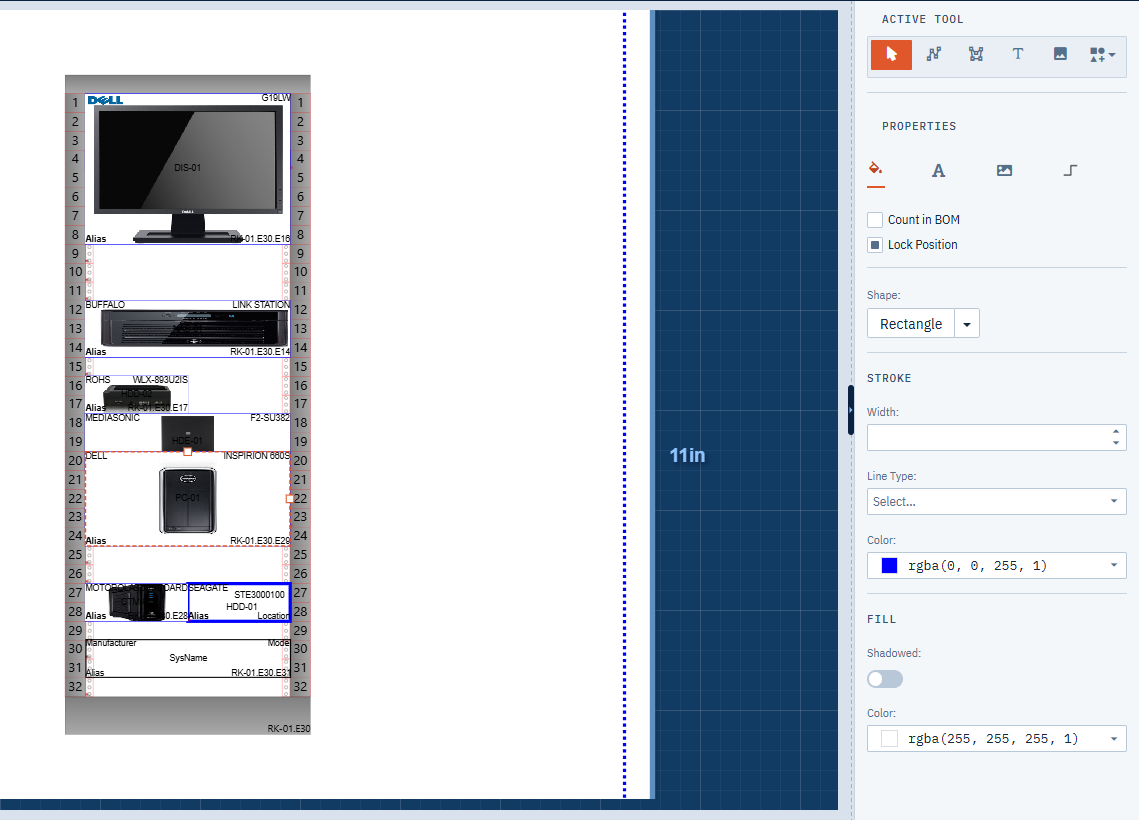
Only items with Count in BOM turned on are counted, and rack panels are usually added with it off. Select the rack panel and turn on Count in BOM in the property window. A panel in the same device as a block is already counted once through the block. See Bill of Materials.
Why can’t I edit the drawing, or why is the Settings menu missing?
You have view-only access to the project. The start page shows [View Only] after the project name, you can select items but not change them, and editing commands such as the Settings menu are hidden. Ask the project owner or your team manager for edit permission. See Sharing Projects and Teams.
Why are Print and Export missing from the File menu?
- The print and export commands only appear while a drawing is open. On the start page and in the Project Data grids they’re hidden; the grids show Export to Excel instead.
- Team members with the Viewer role can’t print or export.
A keyboard shortcut doesn’t work
Click an empty spot on the drawing so it has keyboard focus, then try again. Drawing shortcuts are turned off if you have view-only access. See Keyboard Shortcuts.
Saving and recovery
Does Simple Wires save my drawing automatically?
Yes, on every plan: the drawing saves about three seconds after your last change, and a short saved message appears each time. You can also save straight away with File > Save or Ctrl+S. Opening a Project Data grid also saves the open drawing. With view-only access nothing is saved, because you can’t change the drawing.
Why does my browser warn me about unsaved changes?
If you close the tab, refresh, or leave the editor while the drawing has changes that haven’t been saved, your browser asks whether you want to leave. Choose to stay, save the drawing, then leave.
What is the Recover Drawing dialog?
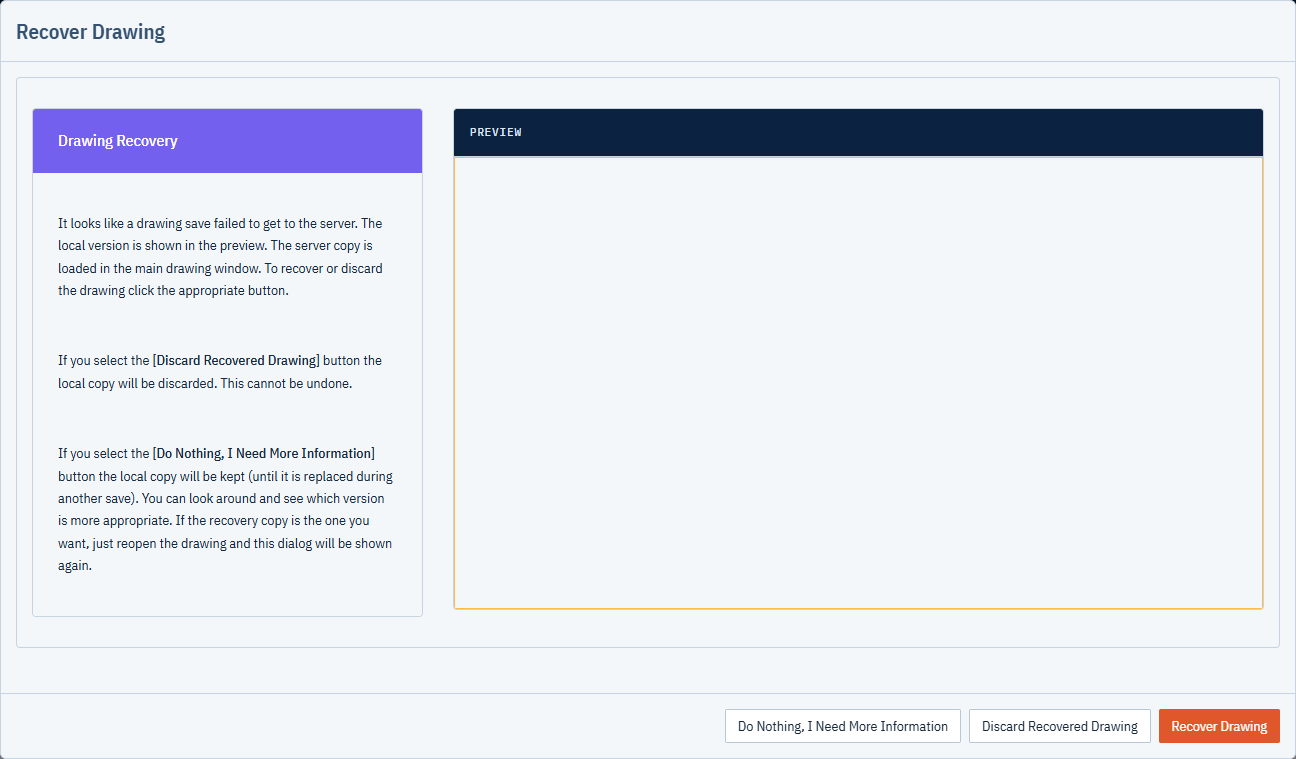
Every time you save, Simple Wires first keeps a copy of the drawing in your browser. If the save doesn’t reach the server, for example because your internet connection dropped, you see “Drawing failed to save. We have created a backup locally.” The next time you open that drawing in the same browser, the Recover Drawing dialog shows the local copy in a preview, with the server copy open behind it.
- Recover Drawing loads the local copy into the editor. Save it to keep it.
- Discard Recovered Drawing deletes the local copy. This can’t be undone.
- Do Nothing, I Need More Information closes the dialog and keeps the local copy, so you can compare the two versions. Reopen the drawing to see the dialog again.
The local copy is only in the browser you were using, so reopen the drawing on the same computer and browser. See Drawings and the Start Page.
How do I go back to an earlier version of a drawing?
Use Project Data > Drawings and Revisions. See Drawing Revisions.
Plans, sharing and output
When does the watermark go away?
The “Simple Wires” watermark in printed and exported output is removed when you activate your subscription by choosing a paid plan and entering your payment details. Reopen the project afterwards. See The trial watermark and Billing and Plans.
Why can’t I export to PDF or DWG?
PDF export isn’t available on the Free plan, and DWG export needs an active paid subscription. You see “This function is not available in the Free version. Please upgrade.” See Printing and Exporting.
Why is my logo missing from the DWG?
DWG export doesn’t include images. It also puts everything in Model Space on Layer 0. See DWG.
I have a paid subscription. Can I share a project with someone on the Free plan?
Yes. Paid subscriptions can share a project with Free users, but only paid users can collaborate on drawings in real time. As the project owner you decide what each invited user can do. See Sharing Projects and the plan comparison in Billing and Plans.
Browser and support
Which browsers can I use?
Use a current version of Chrome, Edge, Firefox or Safari. The editor relies on modern browser features and doesn’t run in Internet Explorer. Keep cookies and site data enabled for Simple Wires: copy and paste and drawing recovery store data in your browser.
How do I send a drawing to support?
- Open the drawing.
- Click Help > Submit this drawing to support.
- Describe the problem and send.
Simple Wires sends support a copy of the drawing along with your message.
How do I open help for what I’m looking at?
Press F1, or click Help > Help for This View. Press Esc to close the help panel. See Keyboard Shortcuts.