Devices
One piece of equipment often appears on more than one drawing: as a functional block on a schematic, as a panel in a rack elevation, and perhaps again on a second schematic. A device ties those objects together, so they share one set of details. Rename the device on the schematic and the rack panel is renamed too. Move the panel to another rack and the block’s Location follows.
Each object in a device is a member. Blocks, rack panels and racks can be members. Off sheet pointers, shapes and text can’t. The Device commands are on the right-click menus of blocks and rack panels.
What a device shares
Every member of a device holds the same:
- SysName, Manufacturer, Model, Alias and Location
- extended data values for the project’s block tags
Change any of these on one member, on the drawing or in the Equipment grid, and every other member changes with it, on every drawing in the project. The cables connected to each member pick up the new text too.
Everything else belongs to the drawing, not the device. Members can have different sizes, colours, fonts and ports, and each sits wherever you put it on its own drawing.
Devices in the Bill of Materials
A device is one item in the Bill of Materials, however many drawings show it. A schematic block and its rack panel are counted once, not twice.
Count in BOM belongs to the device as well. Turn it on or off for one member, in the property window or the Equipment grid, and every member changes with it. Turn it off for equipment you aren’t supplying.
A device is counted when any of its members has Count in BOM on. Older projects often avoided double counting by turning it off on all but one member; they still count each device once, and the members line up the next time you change the checkbox.
Device codes
A device is identified by a short code, such as 7KQ2M. A block or rack panel gets its code the first time
you give it a SysName of your own, in place of the SysName placeholder it arrives with. Until then it
isn’t part of a device.
A code on its own is a device of one. It becomes useful when you assign other objects to it. Renaming an object that already has a code keeps the code and renames the whole device.
You see codes in the Linkage column of the Equipment grid. You never type them; the Assign dialog sets them for you.
Assigning an object to a device
When you draw equipment that already exists elsewhere in the project, assign the new object to its device.
- Right-click the block or rack panel and choose Assign… under Device.
- The Assign to device dialog lists the devices in the project, with the drawings each one is on and how many objects it has. Devices with the same manufacturer and model as the object are listed first and marked with a tick. Use the search box to find one by name, model or linkage code.
- Select the device and click Assign.
- A confirmation lists what the object takes from the device, and anything worth knowing first, such as its own SysName or extended data being replaced. Click Assign to go ahead.
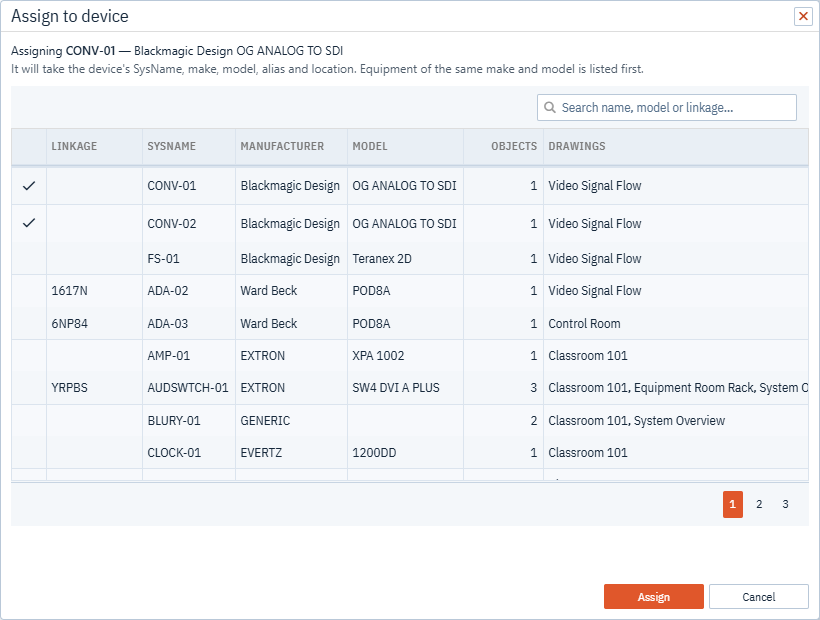
The object takes the device’s SysName, manufacturer, model, alias, location and extended data. A message tells you how many objects now draw the equipment.
Simple Wires refuses an assignment that can’t be right:
- A device can have only one rack panel. A piece of equipment is mounted in one place.
- An object already in a device has to leave it first. See Moving an object to another device.
If two members share port names, the confirmation warns you, because a cable could attach to the port on either one.
Leaving a device
To take an object out of its device, right-click it and choose Unassign… under Device.
The confirmation shows what the object loses. Its SysName, Alias and Location go back to the
placeholders SysName, Alias and Location. Its Manufacturer and Model stay, because it is still
that kind of equipment. The other members of the device keep everything.
If the object is mounted in a rack, it comes out of the rack and is parked beside it. Anything glued onto it is detached too and loses its location, but keeps its own name and device.
Once an object has left, changes to it no longer reach the device, and changes to the device no longer reach it.
Moving an object to another device
Choose Assign… on an object that is already in a device. Simple Wires asks whether to move it. Click Unassign and choose to take it out of its current device, then pick the new one from the list as usual.
Finding the other members
Right-click a block or rack panel that has a code, and hover over Show Me under Device. A list opens beside the menu with an entry for each other member, such as AMP-01 on Rack Elevation. Click an entry to open that drawing with the member selected.
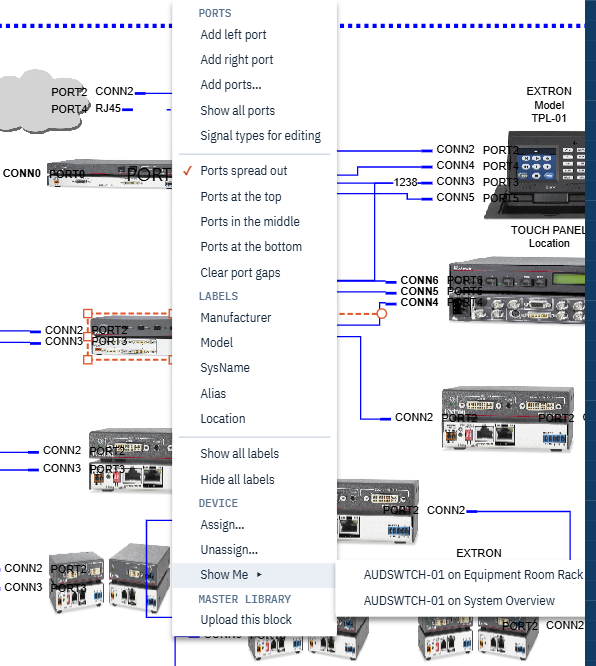
Show Me only appears on objects that have a code. If nothing else is in the device, the list says so.
Show Me opens on hover, so it isn’t available on a touch screen. Use the device detail in the Equipment grid instead.
Devices in the Equipment grid
Project Data > Equipment shows two columns for devices:
- Linkage is the device code. When more than one row has the same code, the code is boxed in a colour of its own, so a device’s rows stand out. The colour stays the same when you sort, filter or reload. Two different devices can share a colour; the codes tell them apart.
- Objects is how many objects draw that equipment. 1 means the object is on its own.
Click the arrow at the start of a row to expand it and list the device’s other members: their drawing, kind, SysName and location, each with a Show Me button.
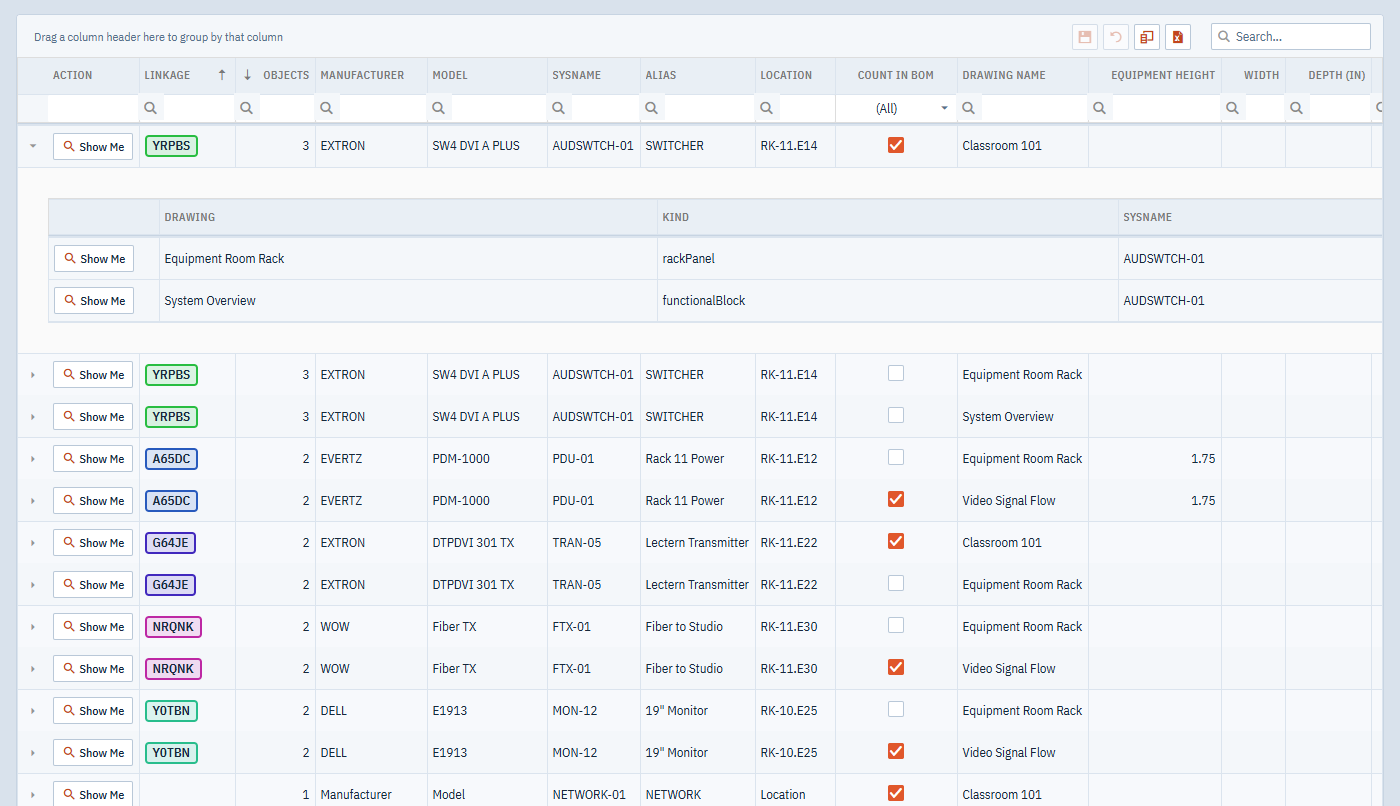
Grouping by Linkage puts each device’s members together. See Project Data Grids.
Location and racks
A device is in one place, so all of its members share one Location. On the rack panel, the location is
where the panel is mounted, such as RK-01.E12. On a schematic block in the same device, the same text is a
label that tells you where the equipment is.
Because the location is shared, moving equipment in the rack updates every member:
- Drag a panel into a rack, out of one, or to another position, and the new location reaches the rest of the device.
- Rename, resize or renumber a rack, and every panel in it is re-pathed, along with their devices.
You can also move racked equipment by typing its location, on the drawing or in the Equipment grid. What happens depends on what you type:
| You type | What happens |
|---|---|
A position on this drawing, such as RK-02.E4 |
The panel moves to that position, and anything mounted on it goes with it. |
A rack that isn’t on this drawing, or a place name such as Storeroom |
The panel comes out of the rack and goes to the drawing’s origin, where equipment from the Master Library lands. Anything mounted on it goes too. |
| A position that doesn’t exist or is already taken, or a blank | On the drawing the edit is refused and the label goes back. |
On equipment that isn’t mounted in a rack, a location is plain text.
In the grid, a blank Location, or the Location placeholder, leaves racked equipment where it is.
See Racks and Rack Panels for rack positions and paths.
The Changes report
An edit to one member can reach objects on drawings nobody has open. When it does, the Changes window lists every object it reached, grouped by drawing, with the drawing you are on first and any failures at the top.
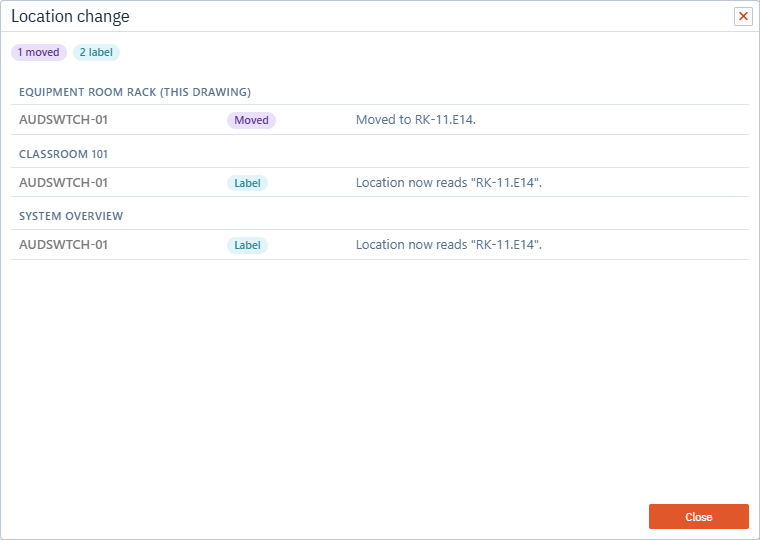
It opens when an edit reached more than the object you changed, or when anything moved, came out of a rack, or failed. An edit in the grid that changed only its own row says nothing.
| Result | Meaning |
|---|---|
| Moved | The object moved to the position its new location names. |
| Moved with it | The object is mounted on something that moved, and went with it. |
| Out of rack | The new location isn’t a position on that drawing, so the object came out of its rack. |
| Label | The object isn’t racked there, so the location is shown as text. The detail says what it now reads. |
| Updated | The object took the new details. |
| No change | The object already had them. |
| Failed | The change couldn’t be made. The detail says why. |
| Not saved | Someone else saved that drawing first, so nothing on it was changed. Make the change again. |
Undo
A change made on the drawing, and the members it reaches on the same drawing, undo together in one step.
Moving a panel is the exception. The move undoes first; undo again to put the other members on that drawing back.
Members on other drawings are saved straight away. If undo leaves them with the new details, make the change again to put them back.