Getting Started
This page takes you from signing in to a saved first drawing. Each step links to the topic that covers it in detail.
Sign in
- Go to the Simple Wires sign-in page.
- Enter your Email and Password, then click Sign in.
To check what you’ve typed, click the eye at the right of the Password box to show the password, and click it again to hide it.
If you don’t have an account yet, click Create a free account. If you have forgotten your password, click Forgot your password?.
If your session has expired when you open a page, Simple Wires asks you to sign in again and then takes you back to that page.

After you sign in, Simple Wires opens your Projects Dashboard. For account details such as changing your password, see Your Account.
Create a project
Every drawing belongs to a project. A project also holds the signal types, equipment and cable data that its drawings share.
- On the dashboard, click New Project.
- Enter a Project Name and, optionally, a Description.
- Click Save Project.
The project appears in your project list. It already contains an empty drawing named Drawing 1.
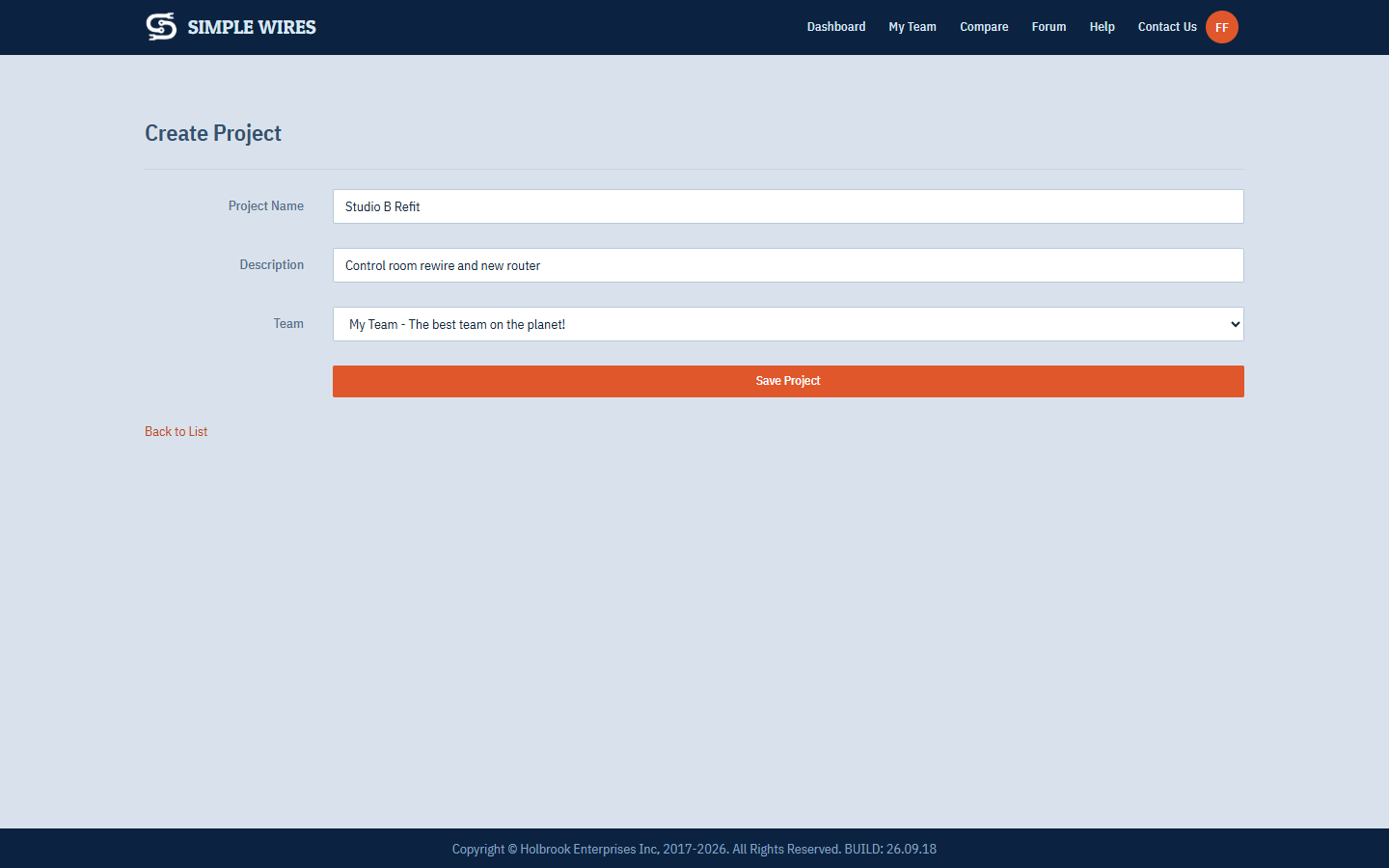
Your plan sets how many active projects you can have. See Projects Dashboard for project limits, archiving, and the other project commands.
Open the project
Click the project name in the list. The project opens on its Start Page, which lists the project’s drawings with a preview of each.
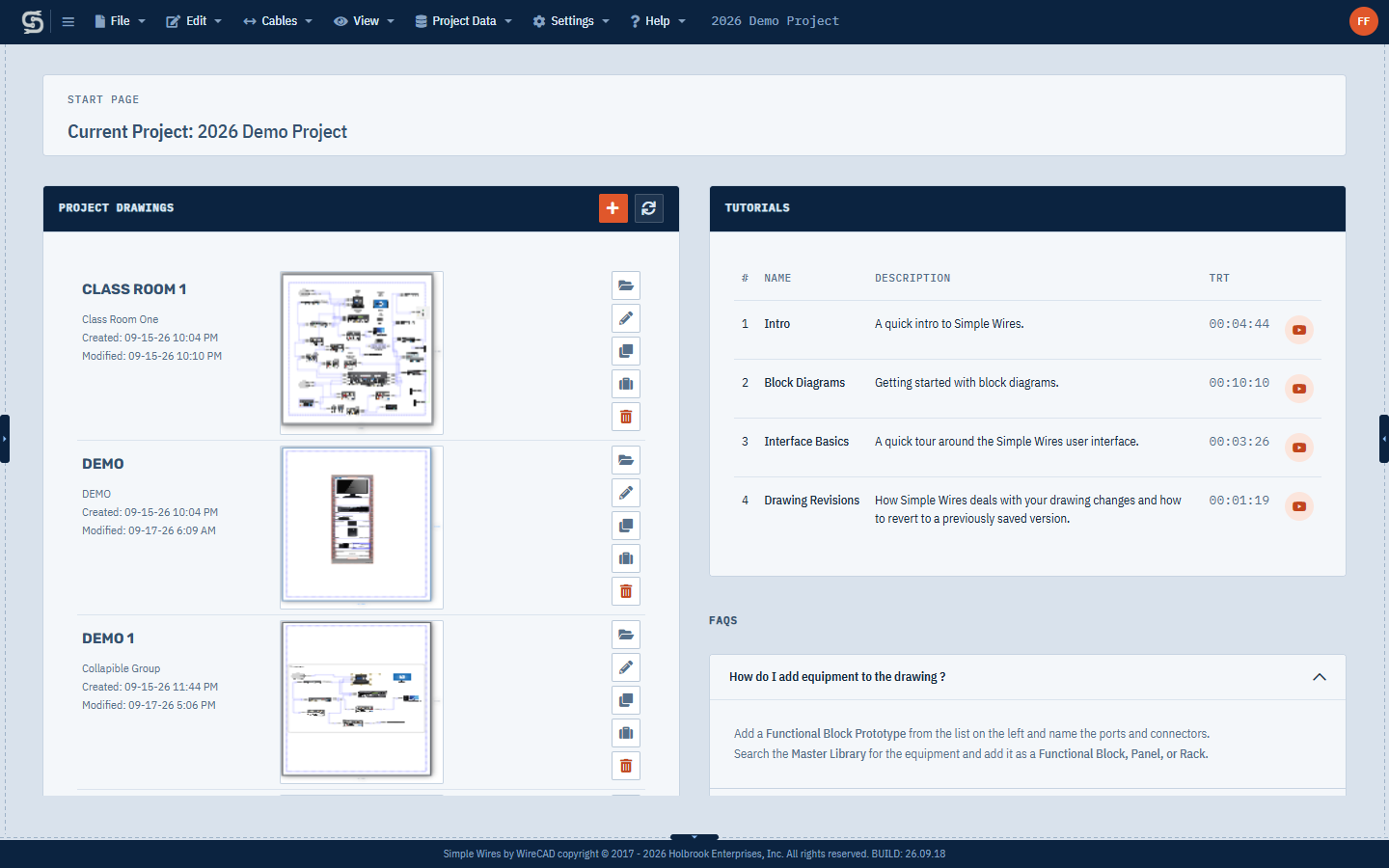
You can return to the Start Page at any time by clicking the Simple Wires logo at the top left. See Drawings and the Start Page.
Create a drawing
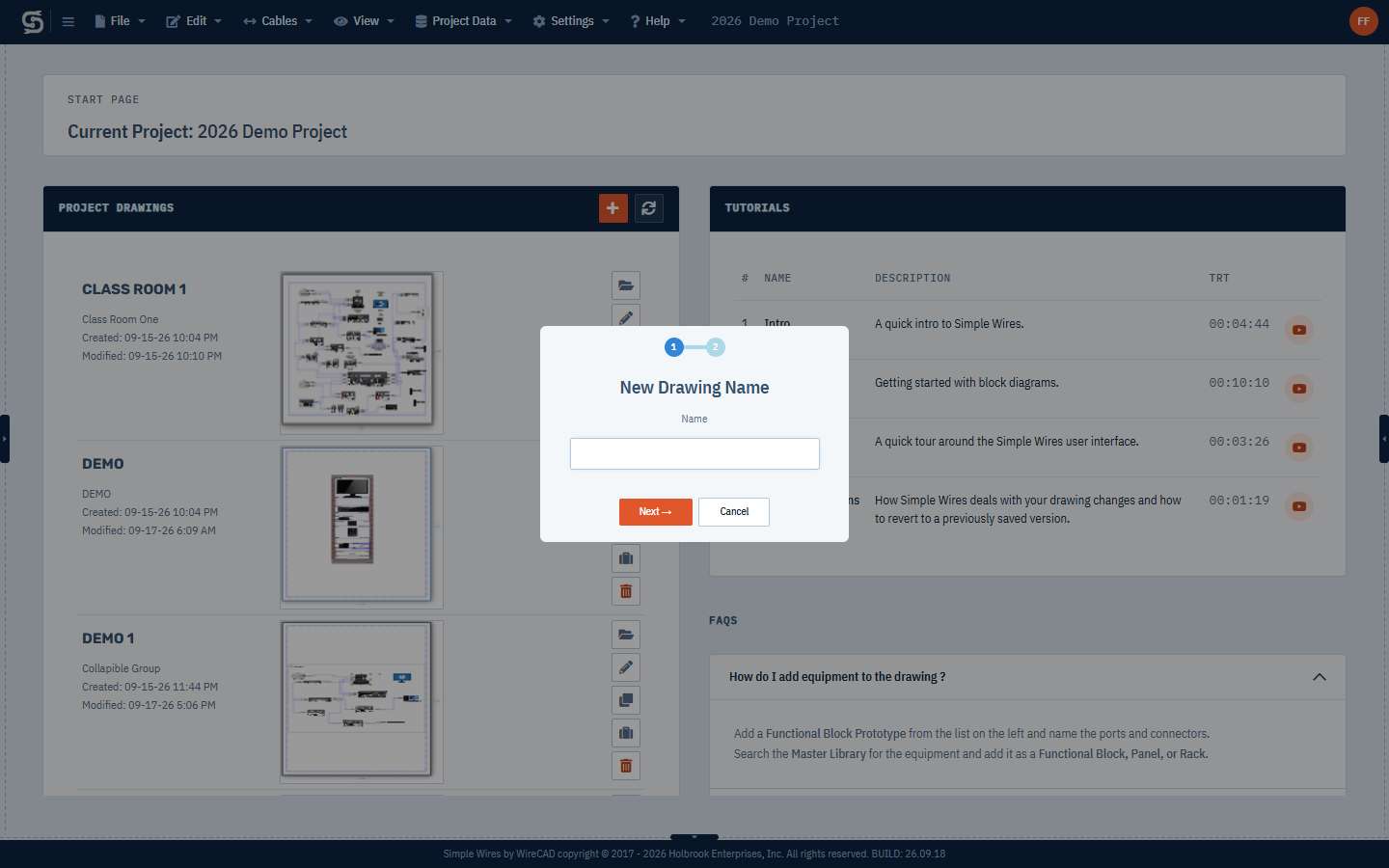
- On the Start Page, click the + button (Add a New Drawing) in the Project Drawings panel, or choose File > New ….
- Enter a name for the drawing and click Next.
- Enter a description (optional) and click Next again.
The new drawing opens in the drawing editor. Its page size, margins and default stroke come from your new drawing settings.
To open the existing Drawing 1 instead, click its name or preview.
On the Free plan a project holds one drawing. Open Drawing 1 and draw in it rather than creating a new drawing.
Save your work
Press Ctrl+S, or choose File > Save (Ctrl + S). A short message confirms the save, and the title bar shows Saving changes… while it is in progress.
Simple Wires also saves automatically a few seconds after each change, on every plan.
Every save also records a revision you can go back to. See Drawing Revisions.
If a save can’t reach the server, Simple Wires keeps a copy in your browser and offers to recover it the next time you open the drawing. See Recovering a drawing.
Where to go next
- The Drawing Editor: the canvas, panes, menus and tools.
- Functional Blocks and Ports: add equipment to a drawing.
- Master Library: find existing equipment.
- Warehouses: keep the items you build and reuse them.
- Drawing Cables: connect ports and number cables.
- Sharing Projects: work on a project with other people.
- Keyboard Shortcuts
In the drawing editor, press F1 or choose Help > Help for This View to open help for the screen you are on.