Sharing Projects
Share a project to let other Simple Wires users view or edit its drawings. As the project owner you choose who is invited, whether each person can edit, and who owns the project.
If you work on a team, you normally give teammates access from the My Team page instead. See Sharing on a team.
Before you start
- Sharing requires a paid plan. On the Free plan, opening Sharing Tools shows a message asking you to upgrade. See Billing and Plans.
- Only the project owner can invite people and change permissions. On a team project, a TEAM OWNER or TEAM MANAGER can too. Everyone else who opens the sharing page can see who shares the project, but can’t change anything.
- The person you invite needs a Simple Wires account that uses the email address you invite. They can create a free account after they receive the invitation.
Open Sharing Tools
- Open the Projects Dashboard.
- Click the vertical dots at the end of the project’s row.
- Choose Sharing Tools.
The page is titled with the project name followed by - Sharing. It lists everyone who shares the project:
- The person’s name and email address.
- Owner: a check mark marks the project owner.
- The invitation status: Pending until the person accepts, then Accepted. The owner’s status is Owner.
- Permissions: an eye icon for view access, plus a pencil icon if the person can edit.
- Buttons to change that person’s access (owners and managers only).
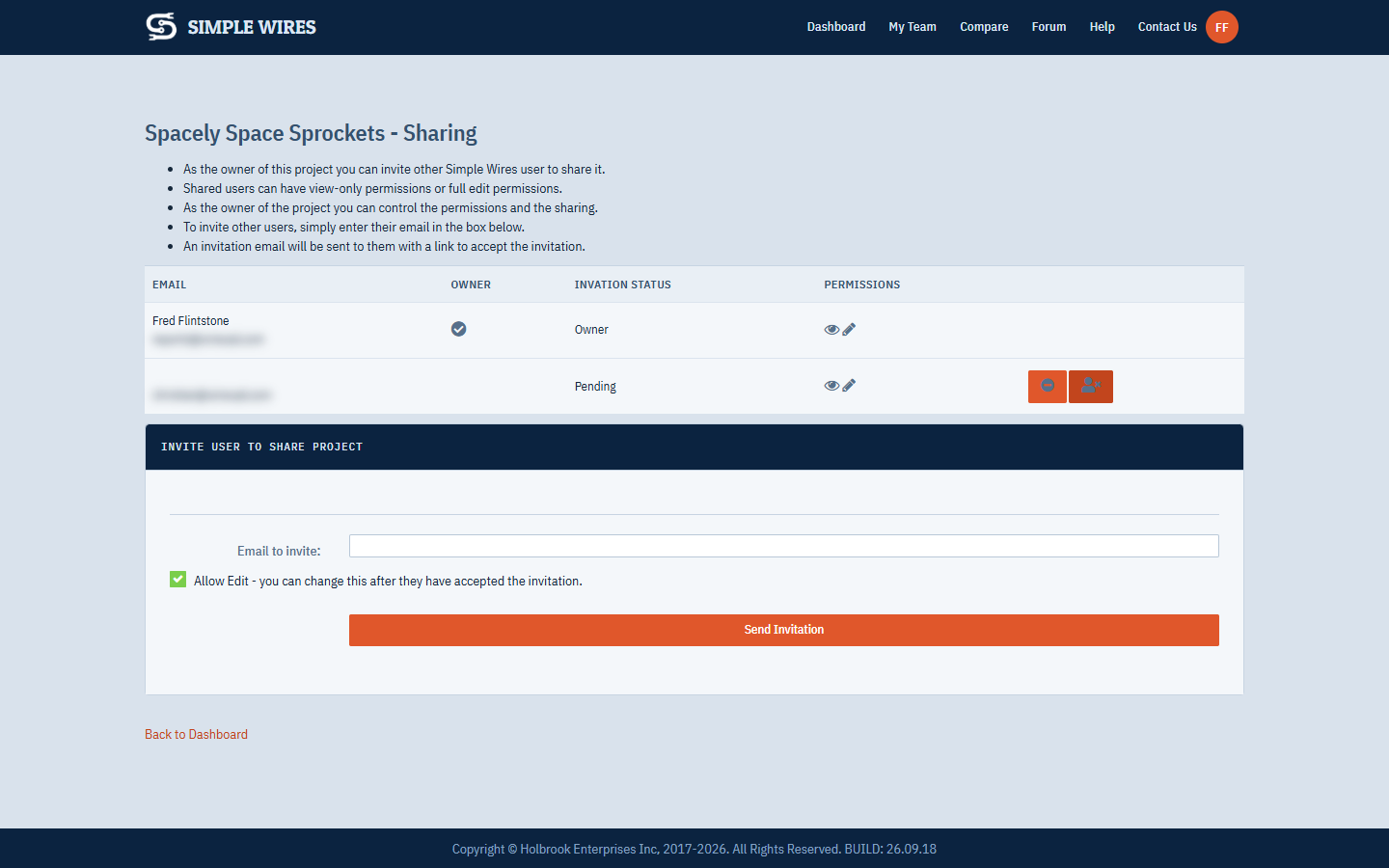
Click Back to Dashboard to return to your projects.
Invite someone
- In the Invite User to Share Project panel, enter the person’s address in Email to invite. Enter one address at a time.
- Leave Allow Edit selected to let them edit the project, or clear it to give view-only access. You can change this later.
- Click Send Invitation.
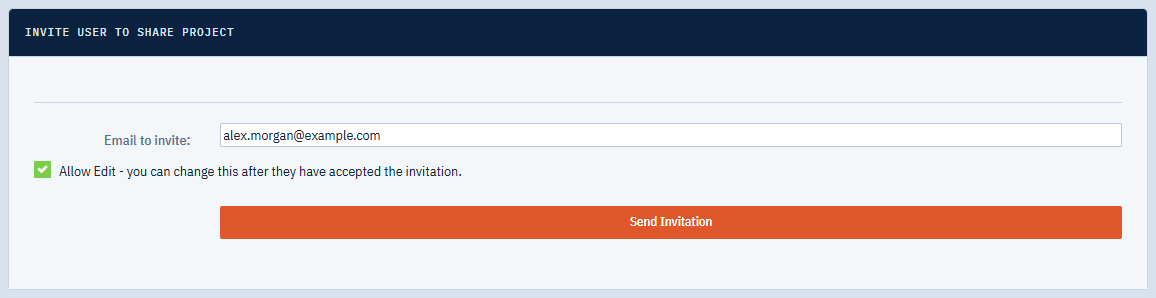
The person is added to the list with the status Pending, and receives an email titled “Simple Wires Project Sharing Invitation”. The email names you and the project, and says whether they have edit or view-only permissions.
If you invite someone who is already on the list, Simple Wires sends the invitation again. It does not change their permissions; use the permission buttons for that.
Accept an invitation
- Open the invitation email and click Accept Invitation. If the button doesn’t work in your email program, copy the link from the email into your browser.
- Sign in with the account that uses the invited email address, if you aren’t signed in already.
The project appears on your Projects Dashboard, and its status on the owner’s sharing page changes to Accepted. The Owner shown under the project name is the person who shared it.
A shared project counts toward your own active project count. If accepting it would take you over your plan’s limit, the invitation is refused with a message, or on the Free plan your other projects are archived so that only one stays active. See Project limits.
Change someone’s permissions
Owners and managers see buttons at the end of each person’s row:
- Grant Edit Permissions (plus icon) lets a view-only person edit.
- Revoke Edit Permissions (minus icon) makes a person view only.
The change takes effect the next time that person opens the project.
People with view-only access can open every drawing, move around it, and use the Project Data grids, but can’t change anything. The editor title bar shows View Only, and commands that change the drawing are hidden.
Remove someone from a project
Click Unshare with this user (the red button with a user icon) on the person’s row. They are removed from the list straight away and the project disappears from their dashboard. There is no confirmation.
To share the project with them again, send a new invitation.
Make someone the owner
You can hand a project over to another person who has accepted an invitation. The new owner controls sharing and permissions from then on.
- On the person’s row, click Make this user the project owner (the crown icon).
- In the Make Owner? dialog, click Yes, transfer ownership!, or Nope! Go back! to cancel.
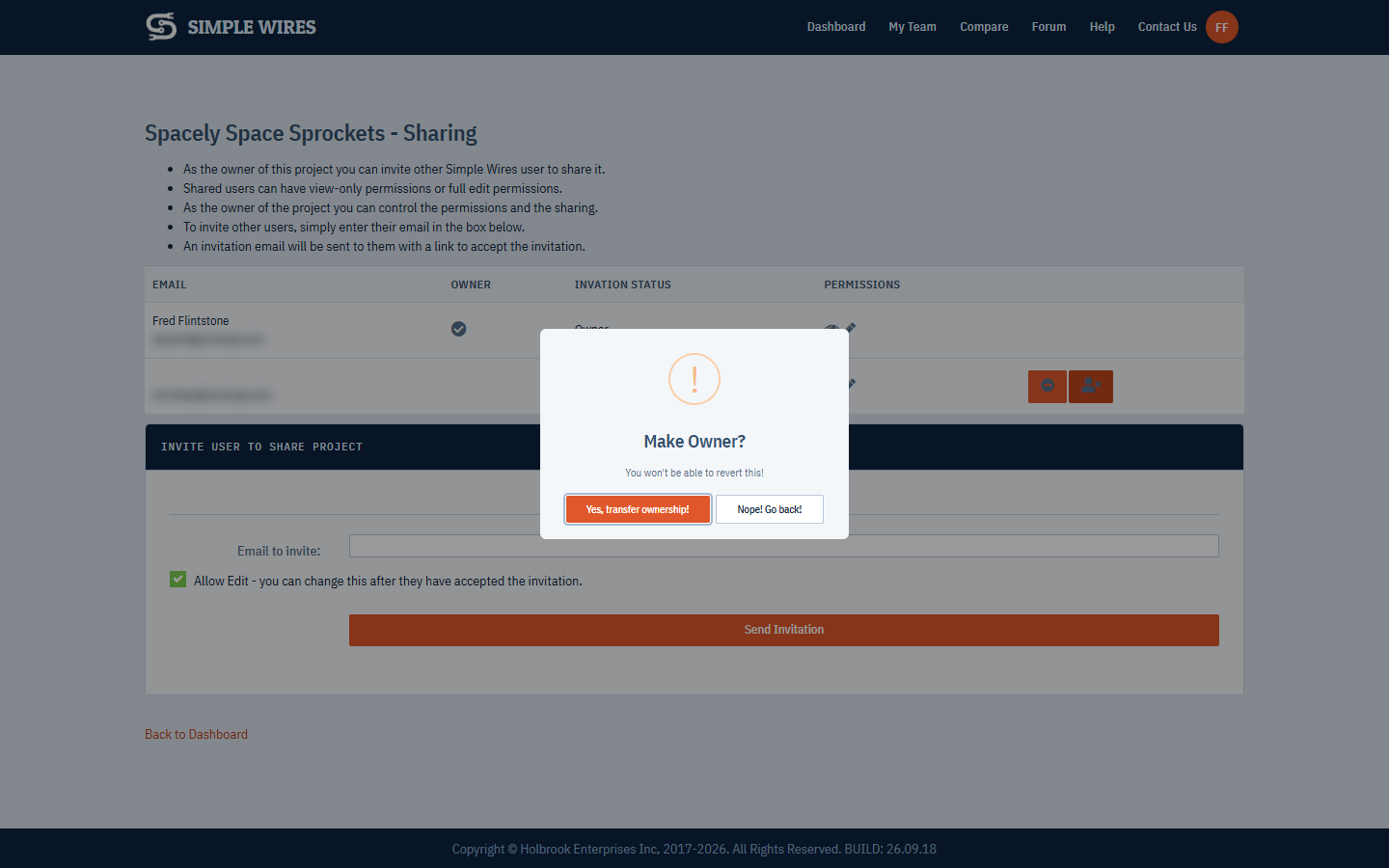
Transferring ownership can’t be reversed by you. After the transfer you can no longer invite people, change permissions or delete the project. Only the new owner can transfer it back.
You can’t transfer ownership to someone on the Free plan, because Free accounts can’t manage sharing. The dialog tells you if that is the case.
The Make this user the project owner button isn’t shown for people whose invitation is still Pending, or on team projects.
Sharing with Free accounts
A project owner on a paid plan can share with people on the Free plan. Everyone on a paid plan sees other people’s changes to an open drawing as they happen. People on the Free plan don’t get live updates.
For what each plan includes, see Billing and Plans.
Sharing on a team
If you are on a team, the sharing page opens with a notice that the My Team page overrides it. Team members get access to team projects through the team, with permissions set by their team role. See Teams.
Use Sharing Tools on a team project only to invite someone who isn’t on your team. If you allow them to edit, they get the same access as a POWER USER on your team.