Terminals
A terminal is a small symbol that stands for one end of a cable without drawing a whole block. Use one for a jack in a patchbay, a bulkhead connector, a microphone or speaker at the end of a run, an adapter on a block’s port, or a cable leaving for another drawing.
Terminals come in five families. They share most of how they’re placed, sized and arranged, and they differ in what they stand for and where their text comes from.
| Family | Stands for | Ports | Its text comes from |
|---|---|---|---|
| Jacks | A pair of jacks in a jackfield, or the front and rear of a bulkhead connector | Two, one each side | The device it’s assigned to |
| Singles | One port: a router crosspoint, a junction-box terminal, one jack of a pair | One, either side | The device it’s assigned to |
| End Points | A piece of equipment at the end of a run, such as a microphone, speaker, camera or display | One, either side | The device it’s assigned to |
| Adapters | A connector change on a block’s port, such as SFP to LC | One, facing away from the block | The block it’s on |
| Off Sheet Pointers | A cable going to, or coming from, another drawing | One | The pointer it’s linked to, at the other end of the cable |
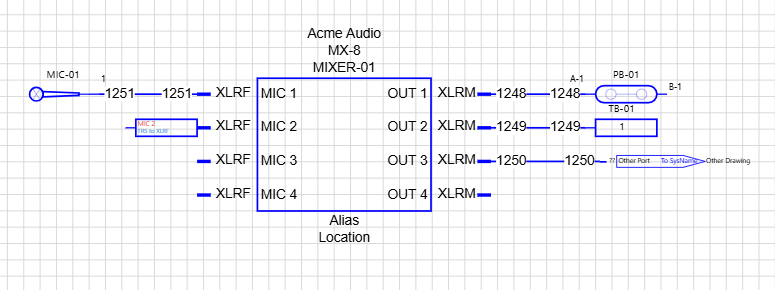
What every terminal has in common
- Placing. Jacks, Singles, End Points and Adapters are in the Terminals section of the left pane. Off sheet pointers have their own Off Sheet Pointers section. Drag one onto the drawing, or use Place terminals to put one past each free port of a block and cable it.
- Size. Every terminal is placed at the drawing’s Default Terminal Size, and can be made Small, Medium or Large from Size on its right-click menu, or stretched with its handles.
- Style. Style on the right-click menu switches between the looks of the terminal’s family, without touching its cables.
- Straighten wire. Moves the selected terminals up or down so each cable runs level with the port at its other end. It works on every family except adapters, which are glued to their port.
- Cables. A terminal’s ports are ordinary ports. Cables draw to them, carry numbers and signal types, and appear in the Cables grid with the terminal’s details at that end.
- Text. The Text tab of the right pane sets the font, colour and angle of each kind of text a terminal draws. See Shapes, Text and Images.
- Locked drawings. On a locked drawing, the commands that move or change a terminal are hidden, as they are for blocks.
How the families differ
| Jacks, Singles, End Points | Adapters | Off Sheet Pointers | |
|---|---|---|---|
| Joins | A device, by Assign… | The device of the block it’s on, automatically | Another pointer, by Link to another pointer… |
| Double-click | Opens Assign terminals | Opens Edit adapter | Opens Select Other Pointer |
| Labels | Label and Show on the right-click menu | Show on the right-click menu | The Text tab: each line can be hidden or restyled, not typed over |
| Moves with | Itself | Its block, glued to the port | Itself |
| Place terminals | Yes | No; use Add adapter… on the port | Yes |
| Bill of Materials | Counted once with its device | Listed under Adapters | Never counted |
Jacks
The Jacks family draws two ports, one on each side, for things that come in pairs:
- Pair looks, for a jackfield: Split box, normalled, half-normalled and non-normalled jacks, bracket jacks and chevron jacks, and Minimal dots.
- Bulkhead looks, for a connector through a wall or panel: Split box, Wall bar, Connector glyphs and Circle through wall.
A jack’s normal is drawn, not followed: a normalled pair shows a line between the jacks, a half-normalled pair a line that stops short of the B jack, and a non-normalled pair none. Signal tracing doesn’t pass through a normal.
Jacks are usually named by row, A-1 on the top row and B-1 below it, and bulkheads by face, 1F at the front and 1R at the rear. Assign terminals offers both patterns.
In the left pane these looks are under Pair and Bulkhead. Style lists the looks of the terminal’s own group, and Pair styles or Bulkhead styles under it switches to the other.
Singles
A single has one port, on either side. Use it for a terminal strip, one crosspoint of a router, or one jack on its own:
- Small box and Dot.
- One jack of a pair, in the jack, bracket jack and chevron jack looks, each full, half or non-normal, with a dimmed edge where its partner would be. Each comes with the cable on the left or on the right.
Flip direction on the right-click menu moves the port to the other side, and the drawing turns with it.
End Points
The End Points family draws equipment at the end of a cable as a small picture with one port: 105 symbols in twelve groups.
| Sources | Destinations |
|---|---|
| Audio sources (microphones, instruments, playback) | Audio destinations (speakers, headphones, recorders) |
| Video sources (cameras, computers, players) | Video destinations (displays, projectors, screens) |
| Control sources (keypads, buttons, sensors) | Control destinations (touch panels, relays, shades, fixtures) |
The other six groups are Network, RF, Security, Comms, Test and Power.
A source is placed with its cable on the right, and a destination with its cable on the left. Flip direction turns either one round.
In the left pane each group is a section of its own, such as End Points · Audio sources. On the right-click menu, Style opens on the twelve group names; pick one to see its symbols, or Back to return. A single has End Point styles under Style, to turn it into an end point, and an end point has Single styles.
Adapters
An adapter sits on a block’s port and changes its connector. It’s part of the block’s device, moves with the block, and has its own dialog for the connectors it joins. See Adapters.
Off sheet pointers
A pointer carries a cable to another drawing. It doesn’t belong to a device; instead it’s linked to the matching pointer on the other drawing, and shows the equipment, port and drawing at that end. See Off Sheet Pointers.
Pointers share the terminals’ Size, Straighten wire, Default Terminal Size and Place terminals.
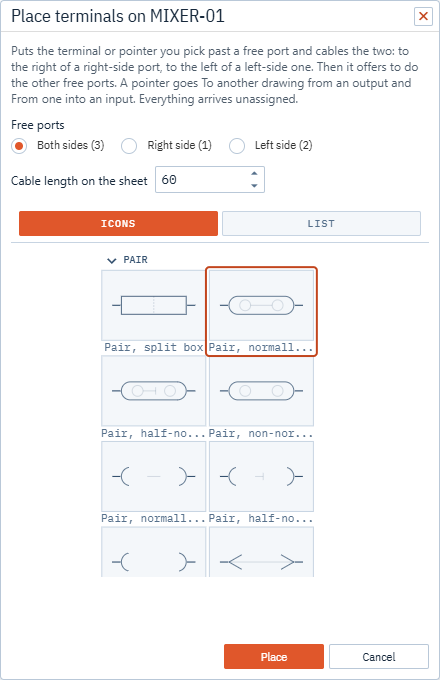
Place terminals
Place terminals… puts a terminal or pointer past a block’s free port and cables the two. It’s on the block menu under Ports, on the port menu under This port (starting at that port), and on a terminal’s own menu, for chaining one terminal past another.
- Right-click a block, a port or a terminal and choose Place terminals….
- Pick a look from the palette in the dialog. It holds the Jacks, Singles and End Points looks, and an Off-sheet pointers section with one entry per shape.
- Choose which side’s free ports to use, and the Cable length on the sheet.
- Click Place. The first terminal is placed, and you’re asked whether to place the same one past the other free ports.
A terminal goes to the right of a right-side port and to the left of a left-side one, and a single port turns to face the block. A pointer is placed as To another drawing past an output and From another drawing before an input. Both ends of the new cable take the port’s signal type.
Everything arrives unassigned and selected, ready for Assign…. The look and cable length are remembered in your browser for next time.
Assigning terminals to a device
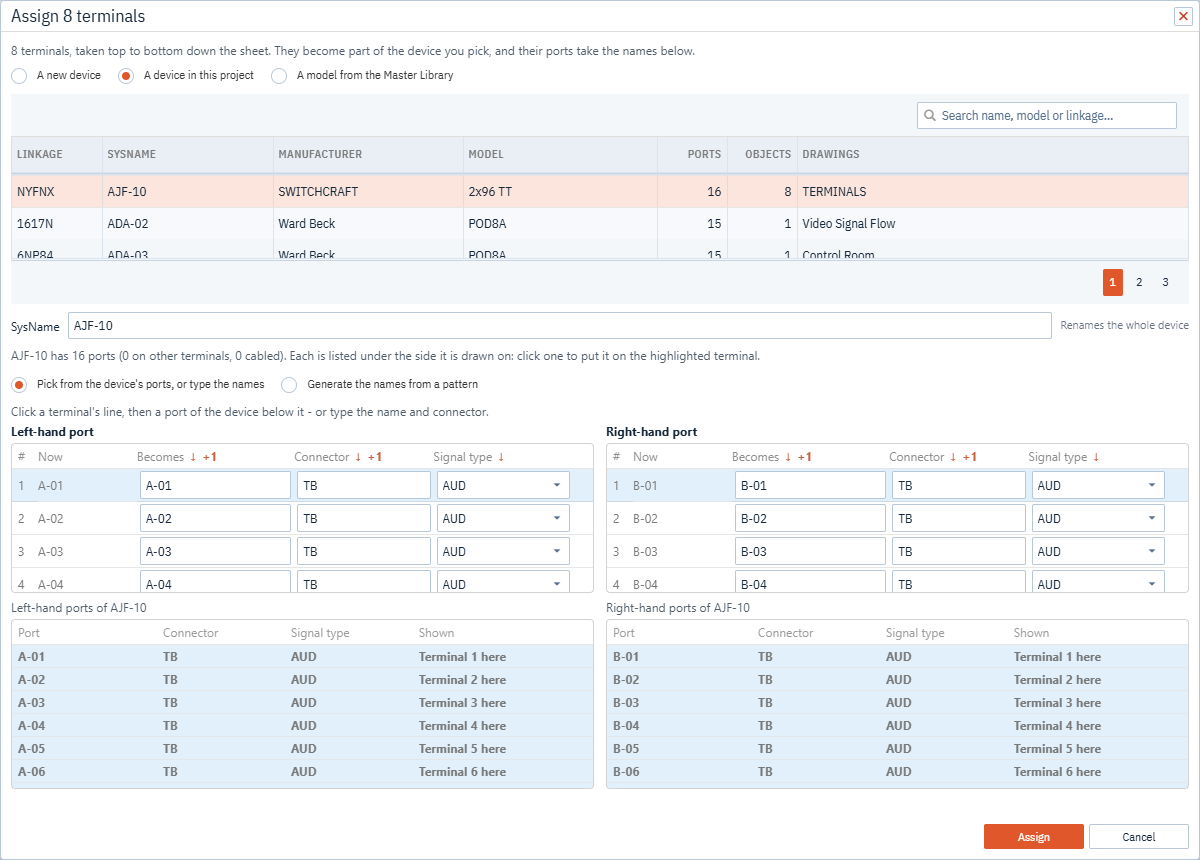
A jack, single or end point joins a device the way a block does, so it shares the device’s SysName, make, model, alias and location, and its cables report the right equipment. Unlike a block, a terminal shows only a port or two of the device, so assigning one is also where you name its ports.
- Select the terminals: one, or a run of them, such as jacks 7 to 14 of a jackfield.
- Double-click one, or right-click it and choose Assign… under Device. The Assign terminals dialog takes them top to bottom down the sheet.
- Choose where the device comes from:
- A new device: type its SysName, and the manufacturer and model if you know them.
- A device in this project: pick it from the list. You can rename the whole device here.
- A model from the Master Library: search for it. Its inputs and outputs become the ports to pick from.
- Name the ports, in one of two ways:
- Pick from the device’s ports, or type the names: click a terminal’s line, then a port of the device listed below. A port another terminal already shows, or that has a cable, is marked.
- Generate the names from a pattern: choose Jackfield rows, Bulkhead faces, Numbered or Custom, then the Start at number and how many Digits.
- Click Assign.
Use ↓ to copy the highlighted line’s value to every line below it, and +1 to count on from it.
Unassign… and Show Me work as they do for blocks; see Devices.
You can also place a whole Master Library model as terminals: choose Terminals under Place Item As and pick a look. See Master Library.
Labels
Right-click a jack, single or end point:
- Under Label, pick where its label sits: Above, Below, Left, Right or Inside.
- Show ticks what it draws: SysName, Port names, Connectors, Manufacturer, Model, Alias and Location. SysName and port names show until you hide them.
- Port names inside, under Show, moves the port names into the body, or out past the stubs.
You can drag the label and each port name to another spot. Put back moved labels returns them.
Size
New terminals, adapters and pointers are placed at the drawing’s Default Terminal Size: Small, Medium or Large. Set it with the buttons at the top of the Terminals or Off Sheet Pointers section, or under Terminals in the Settings menu. It applies to what you place from then on, and your browser remembers it for new drawings.
To change terminals already on the drawing, select them and choose a size from Size on the right-click menu, or drag a terminal’s handles. Text grows with a stretched body.