Drawing Revisions
Simple Wires keeps earlier saved versions of each drawing, called revisions. Use them to see who changed a drawing and when, to note why, and to go back to an earlier version.
How revisions are recorded
Every time a drawing is saved, whether you press Ctrl+S or the drawing is saved automatically, Simple Wires stores a copy of it as a revision. The revision records the date and time, the drawing’s name and preview at that moment, and who saved it.
Automatic saves can happen every few seconds, so revisions are grouped by the minute. If a drawing already has a revision from the last minute, a new save replaces that revision instead of adding another. The result is at most one revision per minute of work.
Simple Wires keeps the 64 most recent revisions of each drawing. When a save creates a 65th, the oldest revisions are removed, except revisions marked Do Not Purge.
Open the Drawings and Revisions grid
In the drawing editor or on the Start Page, choose Project Data > Drawings and Revisions. If a drawing is open, it is saved first.
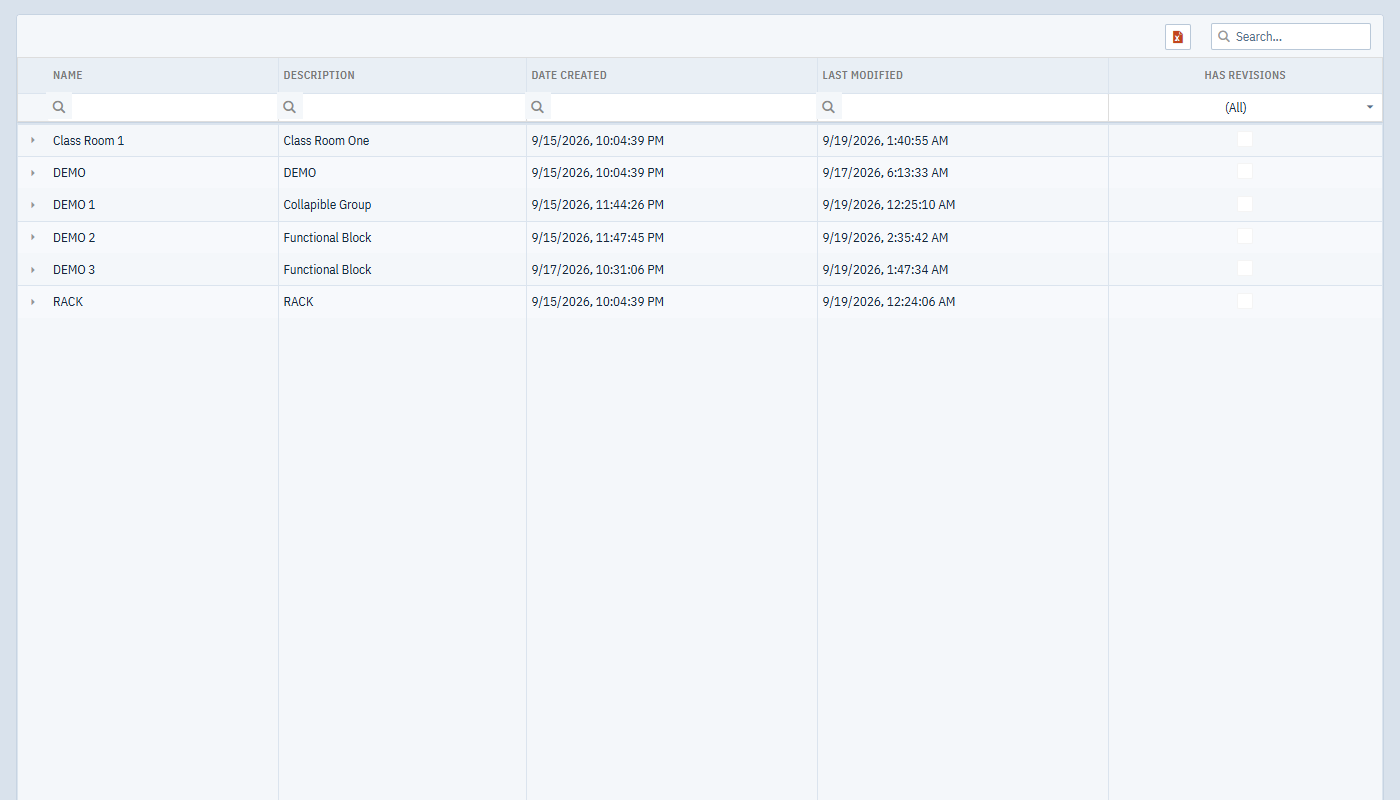
The grid lists every drawing in the project, in name order, with its Name, Description, Date Created, Last Modified, and Has Revisions.
- Type in the search box above the grid to find a drawing, or type in the filter row under the column headings to filter by one column.
- Drag a column border to resize it.
- To export the list to Excel, choose File > Export to Excel.
To go back to drawing, open a drawing from the Start Page (View > Start Page). For the other Project Data grids, see Project Data Grids.
View a drawing’s revisions
Click the arrow at the left of a drawing’s row. The row expands to show Drawing Revisions for: and the drawing name, with the newest revision first.
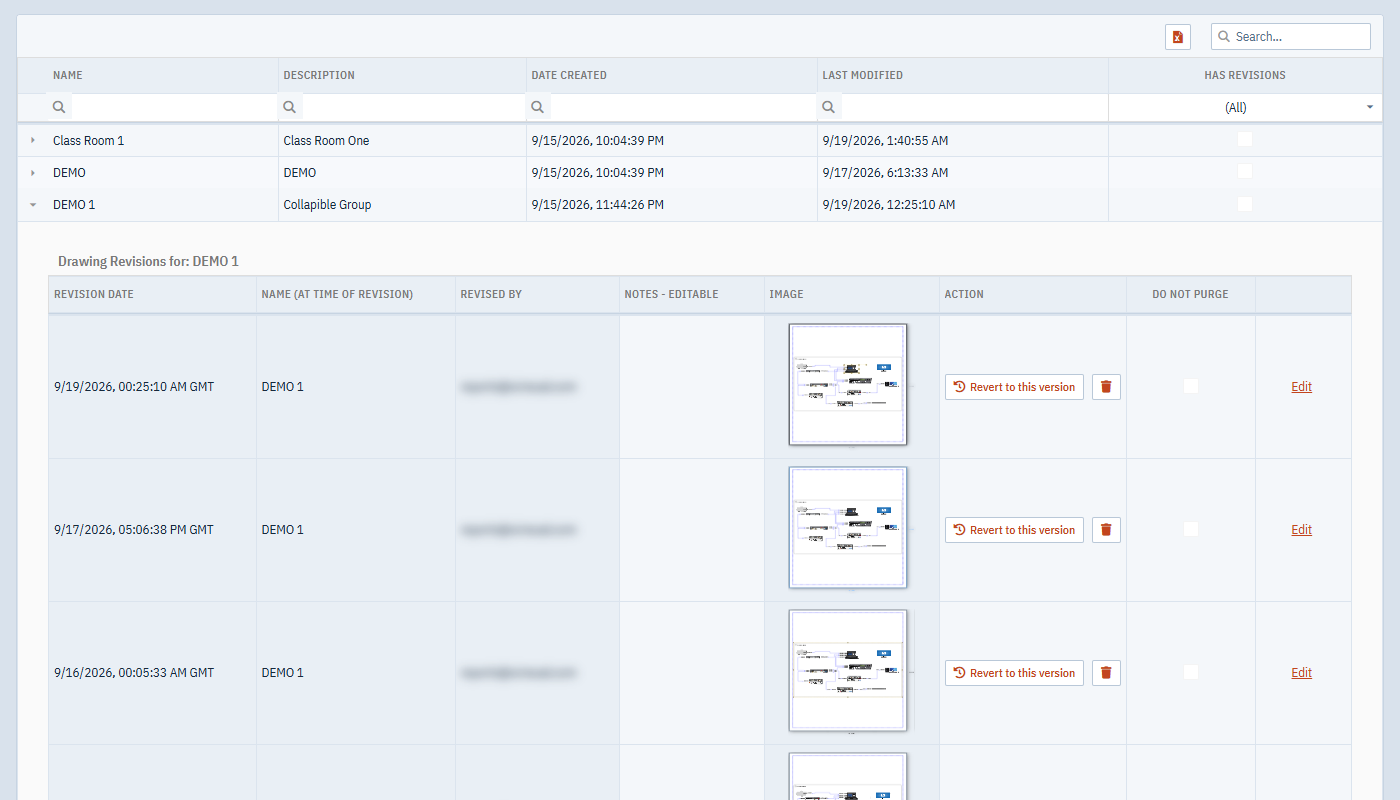
Each revision shows:
- Revision Date: when it was saved, shown in GMT.
- Name (at time of revision): the drawing’s name when it was saved.
- Revised By: the user who saved it.
- Notes - Editable: your notes about the revision.
- Image: a preview of the drawing at that point.
- Action: Revert to this version and Delete this revision.
- Do Not Purge: whether the revision is protected from automatic removal.
The expanded list shows a few revisions at a time. Scroll within it to load more.
If you can only view the project, you see the revisions but not the Action and Do Not Purge columns, and you can’t edit notes.
Revert to an earlier version
- Expand the drawing’s row and find the revision you want. The preview helps.
- Click Revert to this version.
The revision opens in the drawing editor. The saved drawing is not changed yet: save it (Ctrl+S or File > Save (Ctrl + S)) to make this version the current one. The save records a new revision, so the version you reverted from remains in the list.
If the drawing was renamed after the revision was made, reverting and saving also brings back the old name.
Opening this grid saves the open drawing, which records a revision of the version you are about to revert from. A save within a minute of that revision replaces it, even if it is marked Do Not Purge. After reverting, wait until the newest revision is more than a minute old before you save, so the version you reverted from is kept.
Before reverting, add a note to the newest revision so you can find your way back to it.
Add notes to a revision
- Expand the drawing’s row.
- Click Edit on the revision’s row.
- Type in Notes - Editable.
- Click Save, or Cancel to discard the change.
Notes are a good place to record why a change was made, or to mark versions sent to a client or issued for construction.
Keep a revision from being removed
Mark a revision Do Not Purge to keep it when the drawing goes over 64 revisions.
- Click Edit on the revision’s row.
- Select Do Not Purge.
- Click Save.
Protected revisions are kept until you delete them yourself. Do Not Purge doesn’t stop a save made within the same minute from replacing the revision’s contents (see How revisions are recorded).
Change Notes - Editable and Do Not Purge in separate edits. If you change both at once, only the note is saved.
Delete a revision
Click Delete this revision (the trash icon) in the revision’s Action column. The revision is removed straight away, with no confirmation, and can’t be recovered. This works on protected revisions too.
Plan and permission limits
- You need edit permission for the project to revert, delete, protect or add notes to revisions.
- On the Free plan, Revert to this version and Delete this revision show a message asking you to upgrade.
- Deleting a drawing also deletes its revisions. See Deleting a drawing.
- Copying a project with Save As on the dashboard doesn’t copy revisions. See Save As.