Billing and Plans
The Billing page is where you manage your subscription: change your plan, apply a coupon, buy add-ons, update your card and see your invoices. The Compare page sets out what each plan includes.
To open the Billing page, click your avatar (your initials, top right) and choose Billing. If you’re on the Free plan, the avatar menu also has Upgrade, which takes you straight to the plan list.
If you’re a member of someone else’s team, the team owner pays for your account. Your Billing page says “Your account is owned by someone else that handles the billing”. On the Projects Dashboard, the avatar menu doesn’t show Billing at all.
Your subscription
The top of the page shows your role if you have a team role, then your Subscription ID and a table with one row per item you pay for:
| Column | Shows |
|---|---|
| Qty | How many of the item you have. For add-ons, this is a box you can edit. |
| Item | The plan or add-on name. |
| Properties | For the plan, its limits (for example MaxDrawings/Project). |
| Cost | Price per item. |
| Ext | Quantity times cost. |
Below the rows are Subtotal, Discount (with your coupon’s name, or None), Tax and the Total for each billing period.
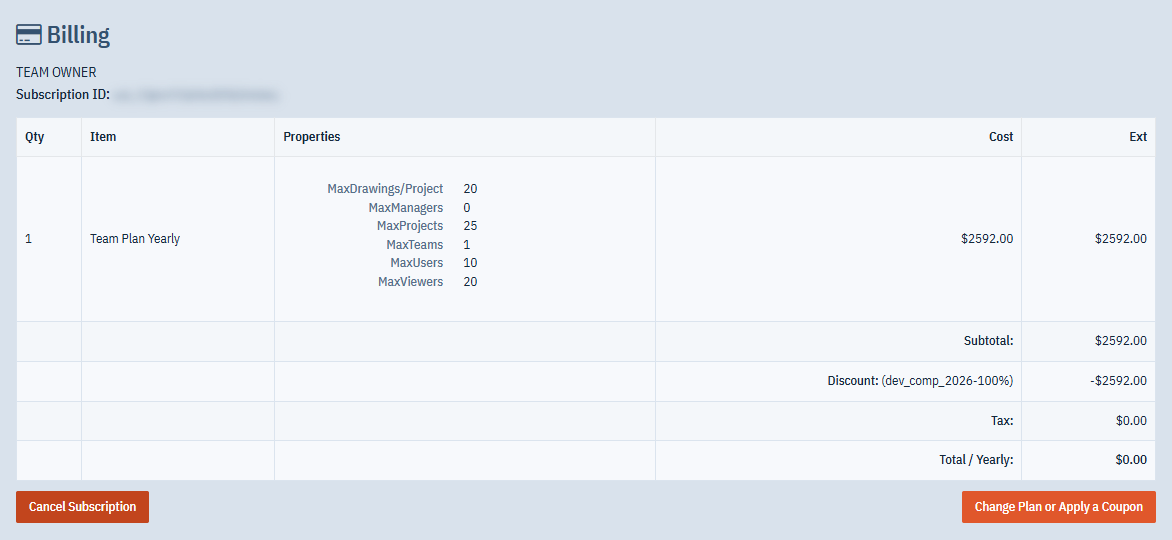
Under the table are two buttons:
- Change Plan or Apply a Coupon: see Change your plan or apply a coupon.
- Cancel Subscription: see Cancel your subscription.
If your subscription has ended, you’ll see the date it expired and a Re-Activate Subscription button instead. Re-activating puts you back on the Free plan. You can then choose a paid plan again.
Free trial
While a trial is running, the Billing page shows Free Trial Until and the end date. If you haven’t saved a card yet, it also shows Add your payment details. Add-ons are turned off until the trial ends.
The Team plan comes with a 10-day trial. The Lite and Individual plans don’t have a trial because you can use the Free plan instead. You only get one trial per account: switching to a plan with a trial again ends that trial straight away, and you need a saved card or a coupon.
Change your plan or apply a coupon
- Click Change Plan or Apply a Coupon.
- Open the tab for the kind of plan you want: Individual Plans, Team Plans or Enterprise Plans. Each plan row shows its description, limits (Plan Properties), cost and Billing Period. The tab for your current plan opens first, with your plan selected.
- Select the plan you want.
- If you have a coupon, enter it in Coupon.
- Click Submit.
When the change goes through, you see “Your subscription plan has been updated”. Up- and downgrades are prorated against what you’ve already paid. For help choosing a plan, click Compare Products at the bottom of the page.
Before you change your plan, keep in mind:
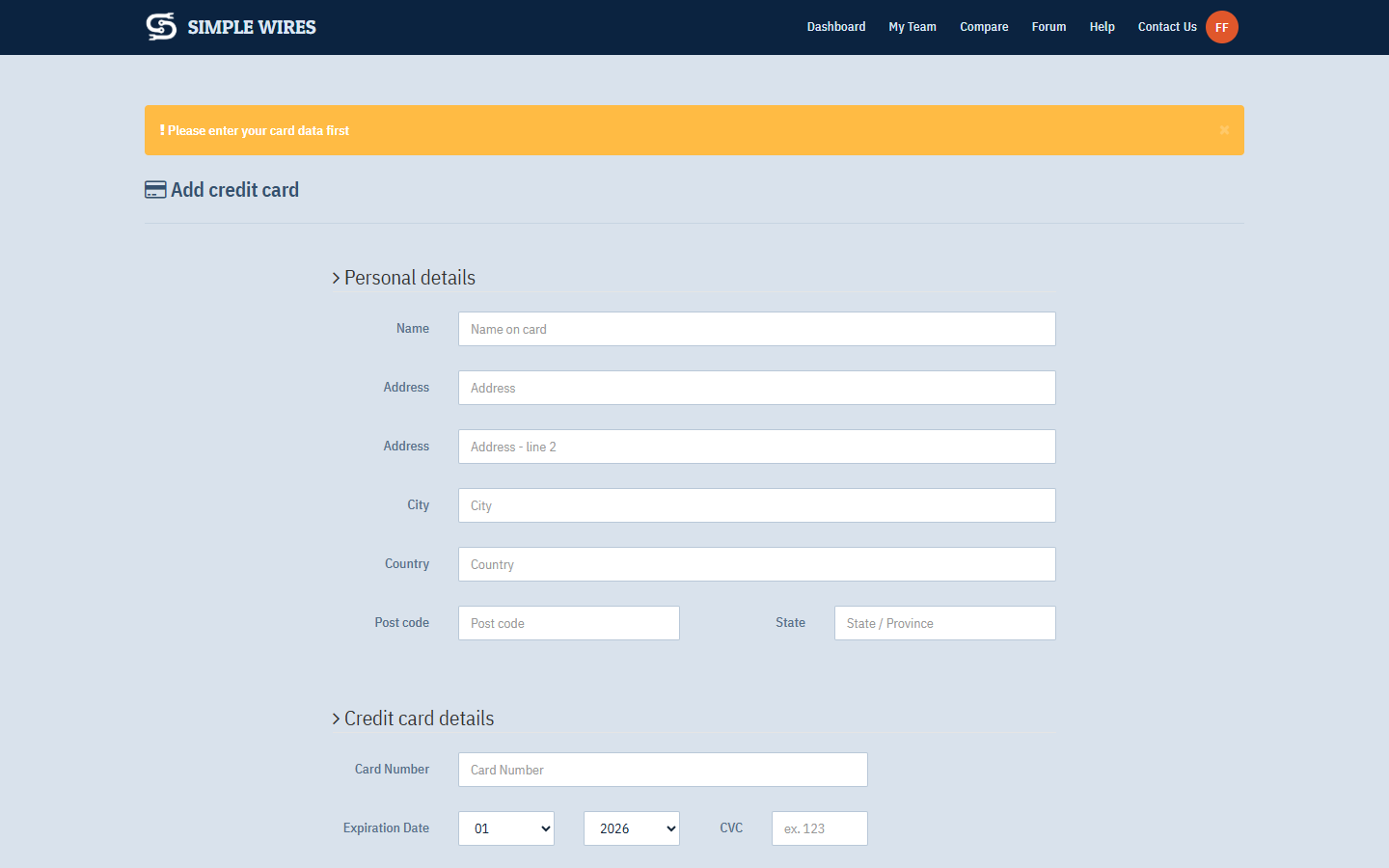
- You need a saved card first. If there’s no card on your account, Simple Wires opens the add-card page with “Please enter your card data first”. The exceptions are the Free plan, a plan you can still trial, and a valid coupon. To use a coupon without a card, click I have a coupon on the add-card page.
- Coupons only work with a plan change. A coupon entered without selecting a different plan fails. Coupon codes are case-sensitive. An unknown code says “That coupon was not found!”, and an expired one says “That coupon has expired!”.
- Changing plans removes add-ons. Buy the add-ons you need again after the change.
- Moving to a Team plan makes you the team owner and creates a team called “My Team”. See Teams.
- Moving from a Team plan to an Individual plan needs all your teams and team members removed first. Simple Wires opens Remove Team and Team Members. Type your account email in the confirmation box and click Remove All Teams and Team Members. This deletes your team members’ accounts and your teams, and can’t be undone. Then choose your new plan again.
- Moving to a lower plan limits you to that plan’s project and drawing counts.
Enterprise plans are set up by the sales team. The Enterprise Plans tab lists how to contact them.
Add-ons
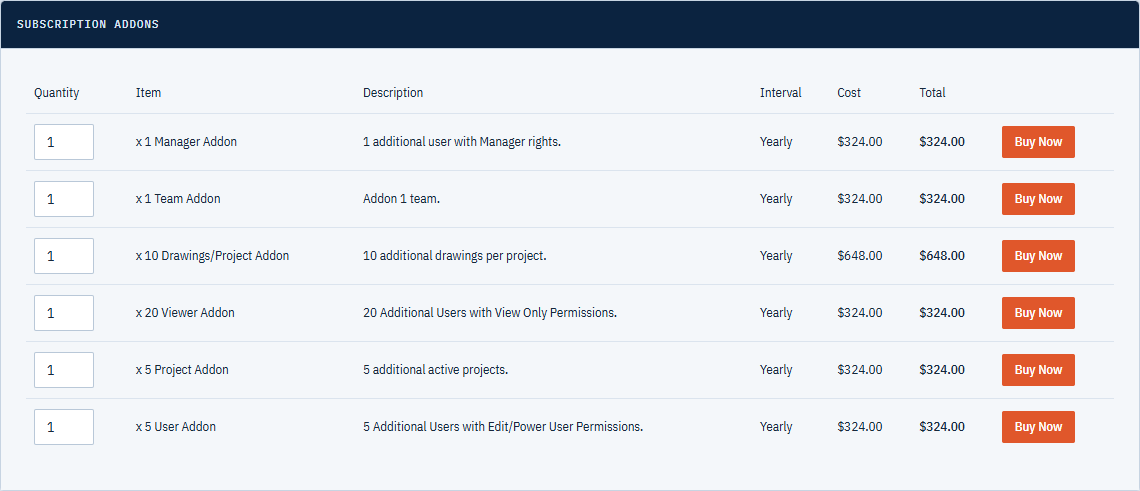
Add-ons raise a single limit on a paid plan without changing the plan: more active projects, more drawings per project, or, on the Team plan, more users, viewers, teams or managers. The Free plan has no add-ons.
The Subscription Addons panel lists the add-ons for your plan and billing period.
- Enter a Quantity. The Total updates as you type.
- Click Buy Now.
The add-on appears as a row in your subscription table. If you buy more of an add-on you already have, the extra quantity is added to it. Charges are prorated to your next billing cycle, and your upcoming invoice shows them.
To change or remove an add-on, go to its row in the subscription table. Change the quantity (use 0 to remove it), then click Update. You can’t go below what you’re using. For example, to reduce a viewers add-on, first remove the extra viewers from your team. Simple Wires tells you what to remove.
Lowering an add-on can mean deleting or archiving projects, drawings or team members first. Deleted data can’t be recovered.
Payment details
Payment Details shows your saved card’s type, last four digits and expiry date, with a Change Credit Card button. If you haven’t saved a card, it shows Add your payment details.
To add or change a card:
- Click Add your payment details or Change Credit Card.
- Under Personal details, enter the name on the card and the billing address.
- Under Credit card details, enter the card number, Expiration Date and CVC.
- Click Save.
Your card details go straight from your browser to Stripe, the card processor, and never reach Simple Wires servers. If your last invoice was unpaid, saving a new card also tries to pay it.
Upcoming invoice
Upcoming Invoice shows the next invoice: number, billing Period, Date, Subtotal, Total and Status. Click Details to see its line items, including any prorated add-on charges. If nothing is due, the page says No Upcoming Invoice.
Invoices
Past Invoices lists every invoice for your subscription, with the same columns and a PAID or UNPAID status. Click Details to open a printable copy of the invoice.
Cancel your subscription
Cancelling deletes your account and everything in it, and can’t be undone. If you only want to stop paying, change to the Free plan instead. You keep your account and your first project.
- Click Cancel Subscription. The Cancel Account and Forget Me page opens. It has a Change Plan button if you’d rather move to the Free plan.
- Follow the confirmation steps. You confirm by email, then submit a final confirmation.
The full process, including what’s deleted and what’s kept, is in Your personal data.
Cancelling deletes all your projects and drawings. There’s no refund for any unused time.
Billing FAQ
The Billing FAQ panel at the top of the Billing page answers common questions. Click + to expand it.
- How do I buy a subscription? There’s no shopping cart. Add your card with Add your payment details, then choose a plan with Change Plan or Apply a Coupon. Enter any coupon on that same page.
- I have an older plan that costs more. Can I switch to the new pricing? Yes. You can change plans at any time and existing payments are prorated. Older plans had fewer restrictions, so a new plan might not cover everything you use now. Older plans are no longer offered, but yours stays active as long as your payments are current.
- Does my “for life” coupon still work on the new plans? Yes, as long as your account email doesn’t change.
- Why can’t I select my older plan? It’s no longer offered to new subscribers. Your existing subscription stays active as long as your payments are current.
For anything else, contact sales at sales@simplewires.com.
Plans
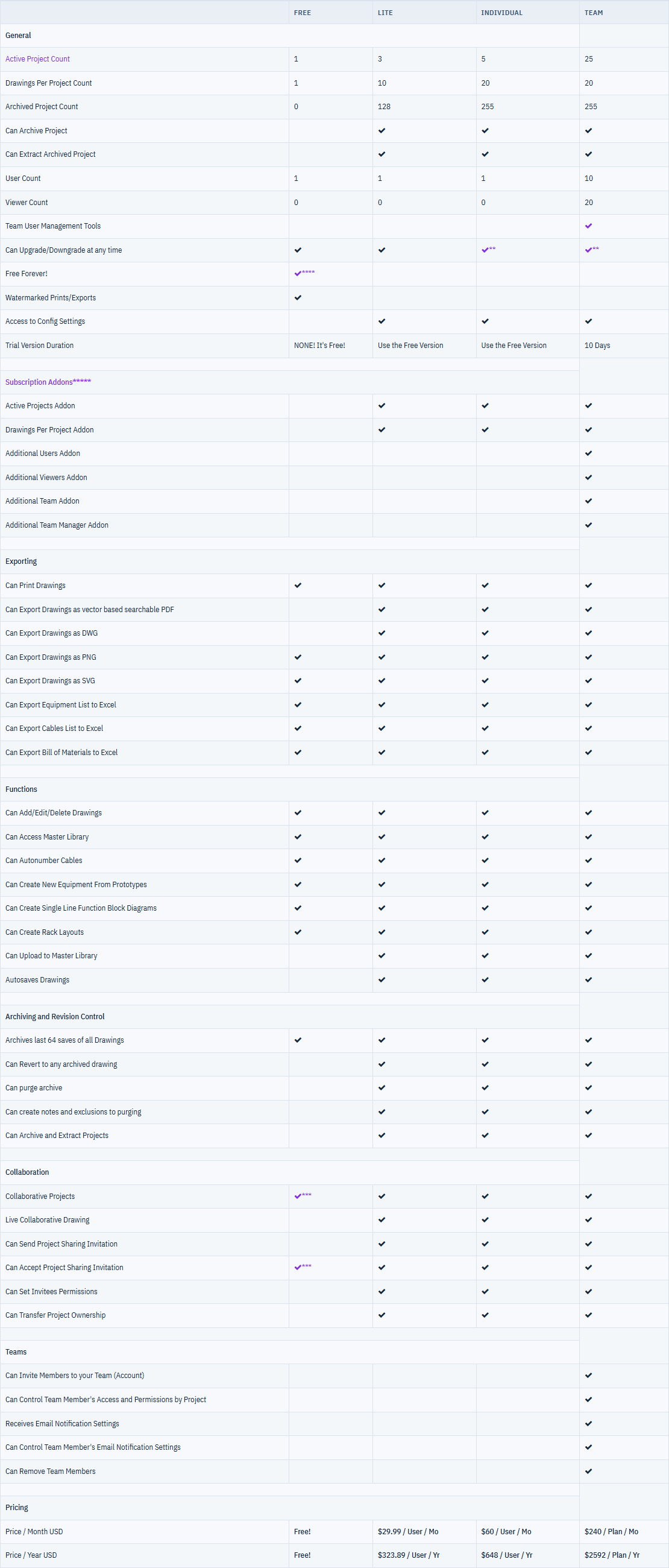
The Compare page (Compare in the Projects Dashboard menu bar) lists what each plan includes. The figures below come from that page.
| Free | Lite | Individual | Team | |
|---|---|---|---|---|
| Active projects | 1 | 3 | 5 | 25 |
| Drawings per project | 1 | 10 | 20 | 20 |
| Archived projects | 0 | 128 | 255 | 255 |
| Users | 1 | 1 | 1 | 10 |
| Viewers | 0 | 0 | 0 | 20 |
| Trial | None needed | Use the Free plan | Use the Free plan | 10 days |
| Price per month (USD) | Free | $29.99 per user | $60 per user | $240 per plan |
| Price per year (USD) | Free | $323.89 per user | $648 per user | $2592 per plan |
Only active projects count toward the project limit. Archived projects don’t.
The drawings per project limit is the project owner’s, including any drawings add-ons, so a project shared with you follows the owner’s plan. Once a project is full, adding a drawing to it, by New, Save As, or copying or moving a drawing into it, is refused with a message. The Start Page shows how full the project is in This Project.
Differences between the plans:
- Free: prints and exports are watermarked. You can’t export PDF or DWG, archive projects, revert to archived drawing saves, use live collaborative drawing, send project sharing invitations, upload to the Master Library, or change Config settings. You can accept a project sharing invitation only if it doesn’t take you past one project. Free accounts that don’t sign in for a year are reminded, then removed along with their data.
- Lite, Individual and Team: everything above, plus add-ons for active projects and drawings per project.
- Team only: team tools, meaning you invite members, control their access and permissions project by project, manage email notifications, and remove members. Team plans can also buy add-ons for users, viewers, teams and team managers.
All plans can print, export PNG and SVG, export equipment, cable and bill of materials lists to Excel, use the Master Library, autonumber cables, and build block diagrams and rack layouts. All plans keep the last 64 saves of every drawing. For export details, see Printing and Exporting.
You can move to a higher or lower plan at any time. If a payment fails, your account moves to the Free plan automatically. Moving to Free limits you to your first project and the Free plan’s other limits.