Extended Data
Blocks and cables carry a fixed set of properties: manufacturer, model, system name, cable type and so on. Extended data is for everything else you need to record against an item — a serial number, an IP address, whether a cable has been tested.
You define the tag names once for the project, then fill in a value per block or cable. The values are saved with the drawing, so they copy and paste with an item, undo with everything else, and appear as columns in the Equipment and Cables grids ready to export.
The Extended Data tab
Select a block or a cable and open the Extended Data tab on the properties panel, on the right.
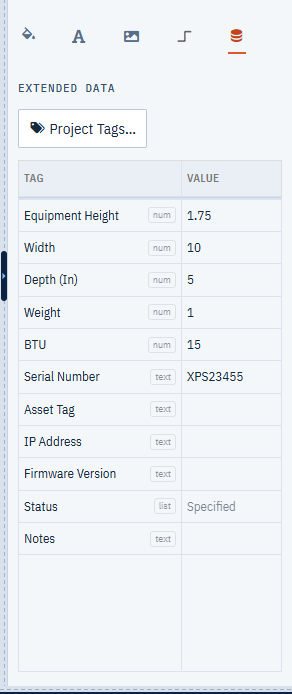
The rows are the project’s tags that apply to what you have selected — blocks see the block tags, cables see the cable tags — whether or not a value has been set. Type a value in the Value column and it is stored against that item.
The grey badge after each tag name tells you what kind of value it takes, so you know what you will get when you click the cell: text, num, yes/no or list.
Two things the Value column shows that aren’t values you typed:
- A dimmed value is the tag’s project default. It applies to this item but nobody has set it here. Type over it to set a value of your own.
<varies>appears when you have several items selected and they don’t agree. Typing a value sets it on all of them.
Select several blocks, or several cables, and you can fill in a tag for all of them at once. A mixed selection of blocks and cables has no tags in common, so the grid is empty.
Project tags
Click Project Tags… on the Extended Data tab to define the tags for the project.
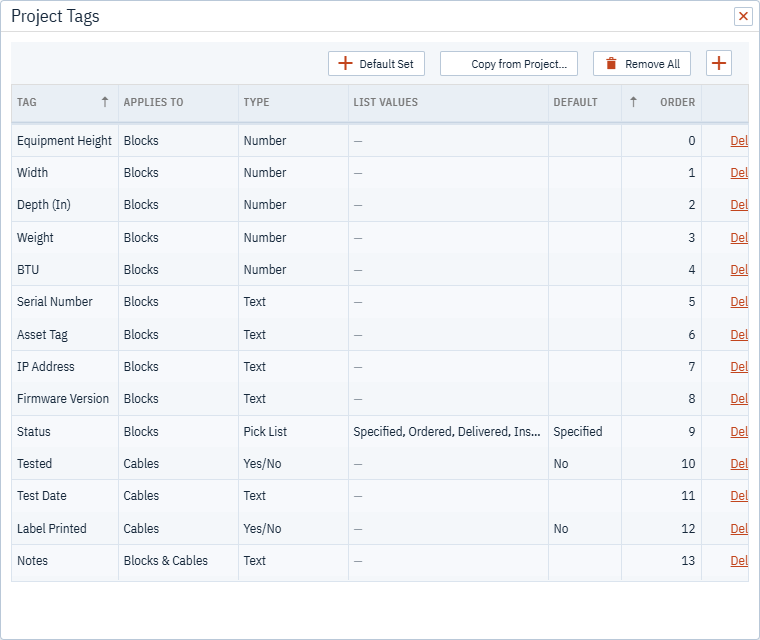
| Column | What it does |
|---|---|
| Tag | The name, shown on the Extended Data tab and as the column heading in the grids. |
| Applies To | Blocks, Cables or Blocks & Cables. Only matching items show the tag. |
| Type | What the value is: Text, Number, Yes/No or Pick List. This sets the editor on the Extended Data tab and the column type in an export. |
| List Values | The choices for a Pick List, one per line. Ignored for every other type. |
| Default | The value an item takes when nobody has set one. Shown dimmed on the Extended Data tab. |
| Order | The order the tags appear in, on the Extended Data tab and in the grids. |
Use Number rather than Text for anything you want to add up or sort — a weight or a BTU figure stored as text sorts alphabetically and won’t total in Excel.
The + button adds one tag. The three buttons beside it fill or empty the list in one go.
Starting from the default set
Default Set adds a starter set covering the things most projects record:
- Blocks — Equipment Height, Width, Depth, Weight, BTU, Serial Number, Asset Tag, IP Address, Firmware Version and Status
- Cables — Tested, Test Date and Label Printed
- Both — Notes
Status is a pick list of Specified, Ordered, Delivered, Installed and Commissioned, starting at Specified. Tested and Label Printed start at No.
Adding the set never overwrites anything: a tag already in the project keeps its settings and its values, so it is safe to use on a project you have already started setting up.
The dimension and weight tags carry no units. If your projects mix them, rename the tags to say which — Weight (lbs), Depth (in) — so a column of numbers means one thing.
Equipment Height is worth knowing about. Blocks placed from the Master Library as rack panels already carry their height, so adding this tag shows a value that is there already rather than an empty column. See Master Library and My Warehouse.
Copying tags from another project
Copy from Project… brings the tag definitions from another of your projects into this one. It copies the definitions only, not anyone’s values.
Tags this project already has are left exactly as they are, so copying a longer list from a similar job adds what is missing without disturbing what you have set up.
Renaming and removing tags
Renaming a tag takes its values with it — every block and cable that had a value for the old name has it under the new one.
Deleting a tag removes its values too, from every item in every drawing in the project. Remove All does the same for every tag at once.
Deleting a tag deletes the values people have entered against it, across the whole project. This can’t be undone. If you only want the tag out of the way in a grid, hide its column instead.
Tags in the grids and in Excel
Every project tag becomes a column in the grid for the items it applies to: block tags in Equipment, cable tags in Cables.
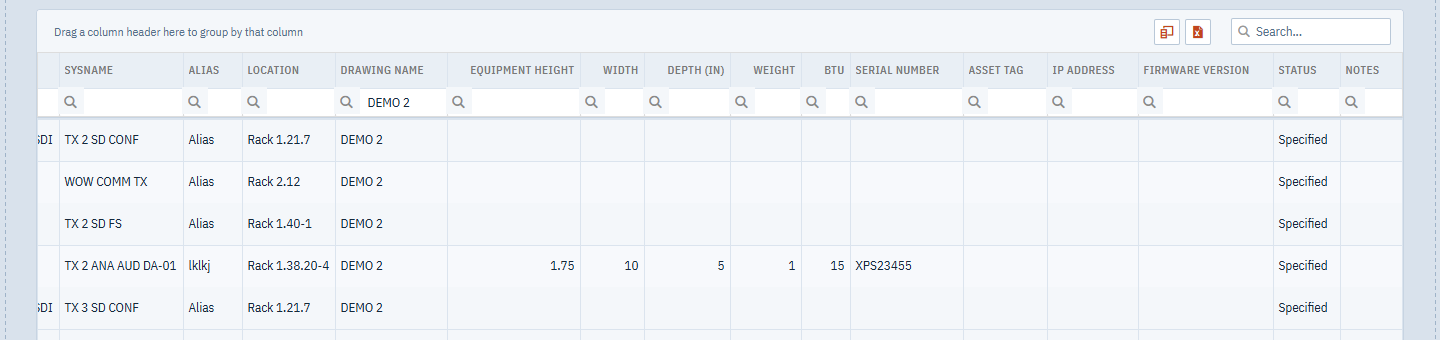
The tag columns come after the built-in ones and behave the same: sort, filter, group and search all work on them. Number tags sort as numbers rather than as text.
If you can edit the project, you can fill in tag values in the grid too: edit the cells, then click Save changes. See Editing the equipment list.
Tags and devices
A block that is part of a device shares its block tag values with the device’s other members. Set a value on the Extended Data tab or in the grid, and every member takes it, on every drawing. Assigning an object to a device replaces its own tag values with the device’s; the confirmation tells you which.
The grids can get wide once a project has a lot of tags. Use the grid’s column chooser to switch off the ones you don’t need — that choice is remembered for the project on this computer.
Exporting to Excel includes whatever columns are showing, tags among them, with numbers as numbers and Yes/No tags as true and false. See Project Data Grids.
When someone else changes the tags
If another person renames or removes a tag while you have a drawing open, your drawing is brought into line and a message tells you what changed and how many items were affected. You don’t need to reload, and unsaved work is kept.
This needs a plan that includes real-time collaboration — see Teams.