Themes and Appearance
A theme sets the colors, fonts and canvas background of the Simple Wires screens. Choose whichever is easiest on your eyes. Your drawings stay the same.
Choose a theme
- Click your avatar (your initials, top right).
- Under Theme, choose Workshop, Paper, Studio or Blueprint. The current theme has a check mark.
The page reloads in the new theme. You can change themes from the Projects Dashboard or from the drawing editor.
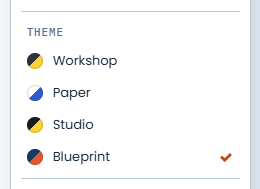
The four themes
- Workshop: a charcoal menu bar with yellow highlights, light gray panels and a gray canvas.
- Paper: a bright, minimal look, with white bars and panels, blue highlights and a pale gray canvas.
- Studio: a dark theme, with near-black bars and panels, yellow highlights and a dark dotted canvas.
- Blueprint: a navy menu bar with orange highlights, condensed type and a blue grid canvas like a blueprint sheet. This is the default.
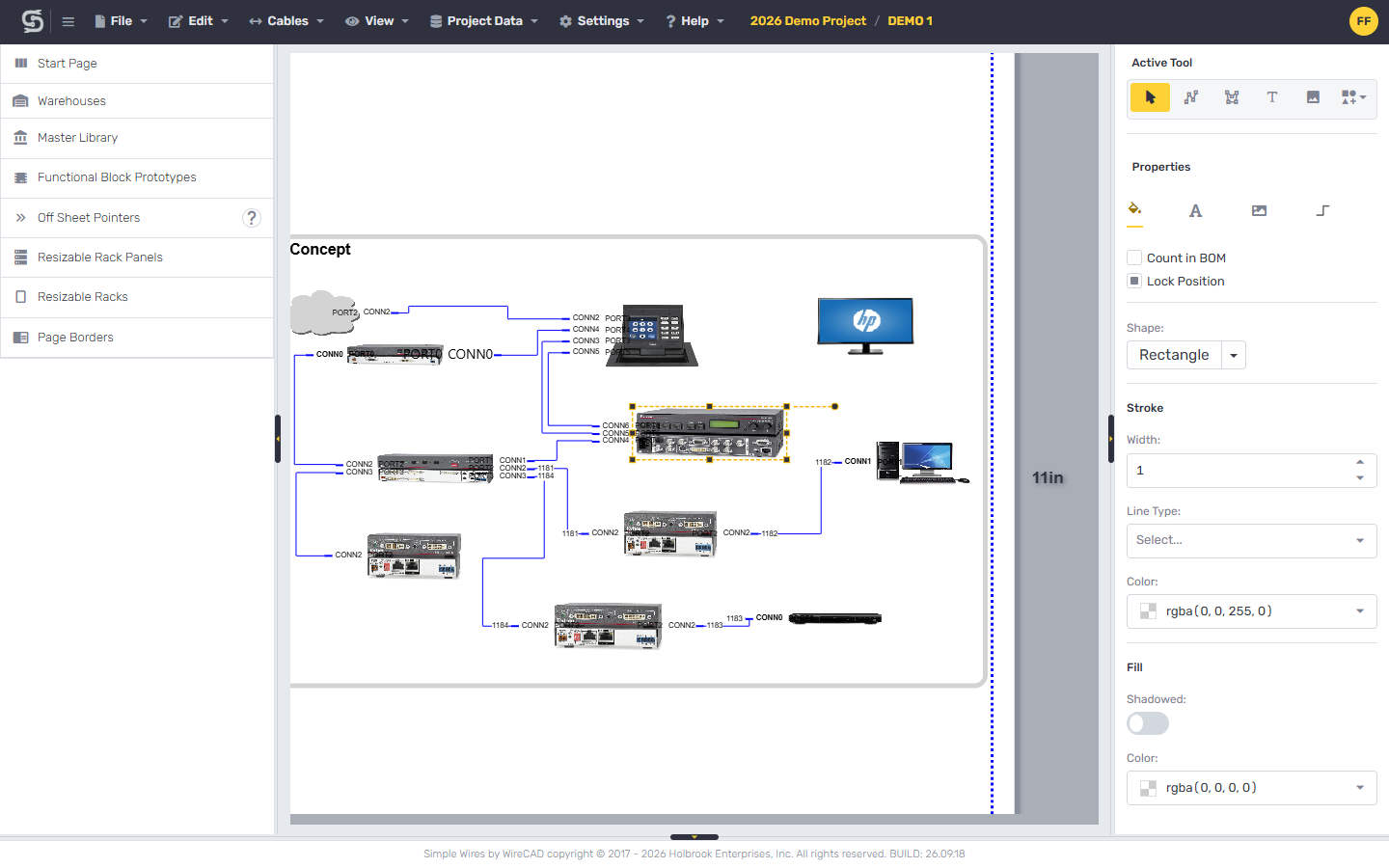
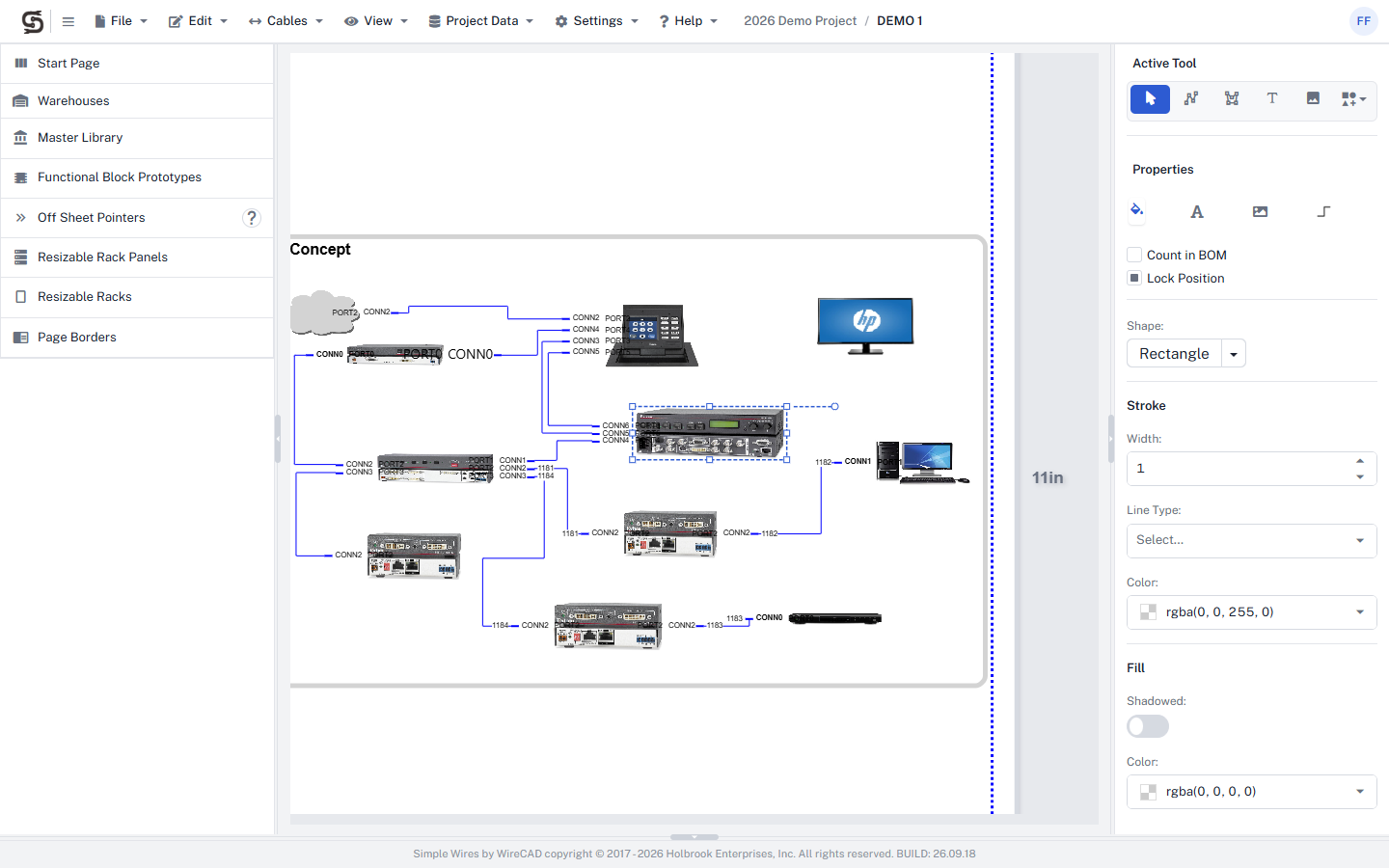
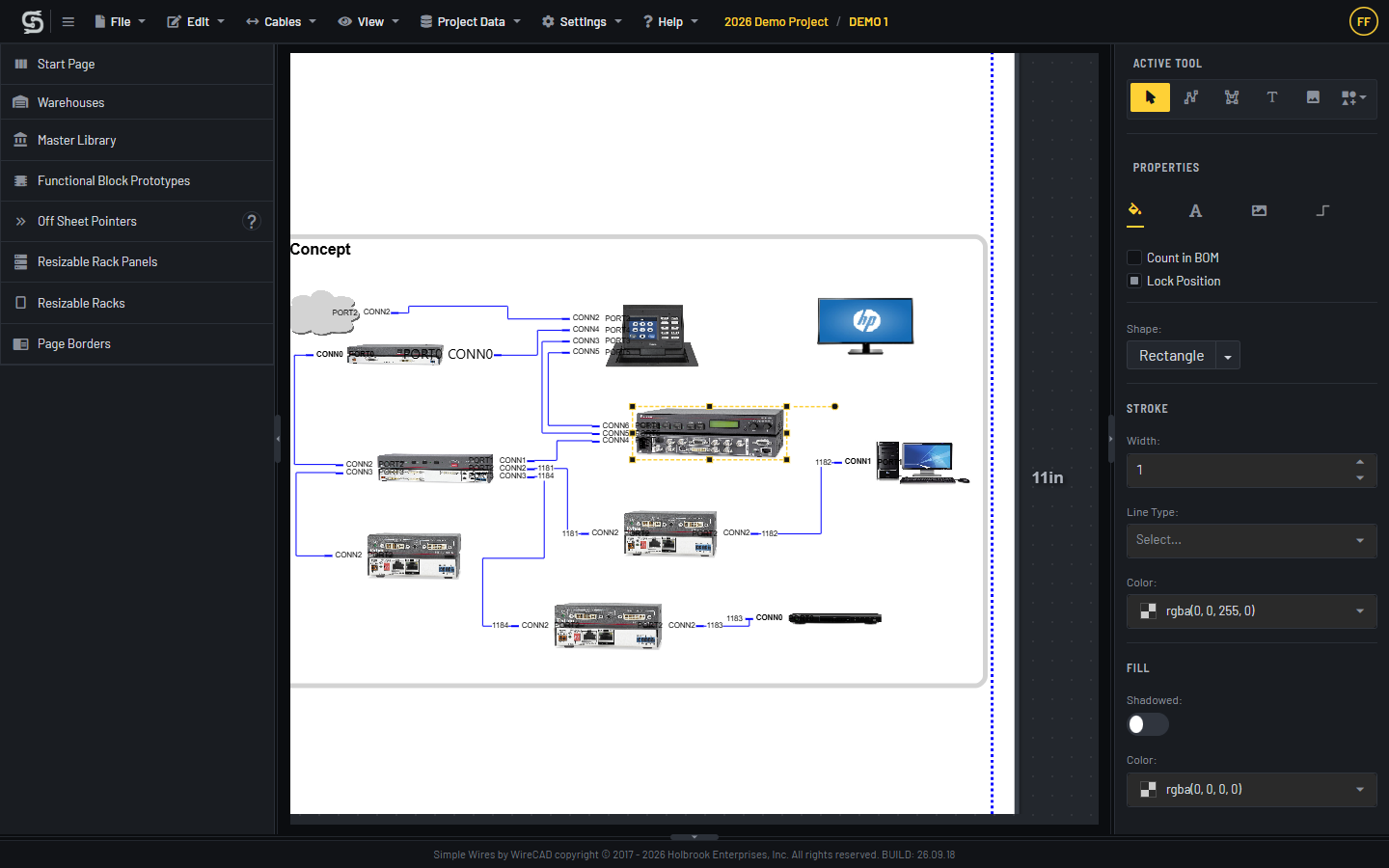
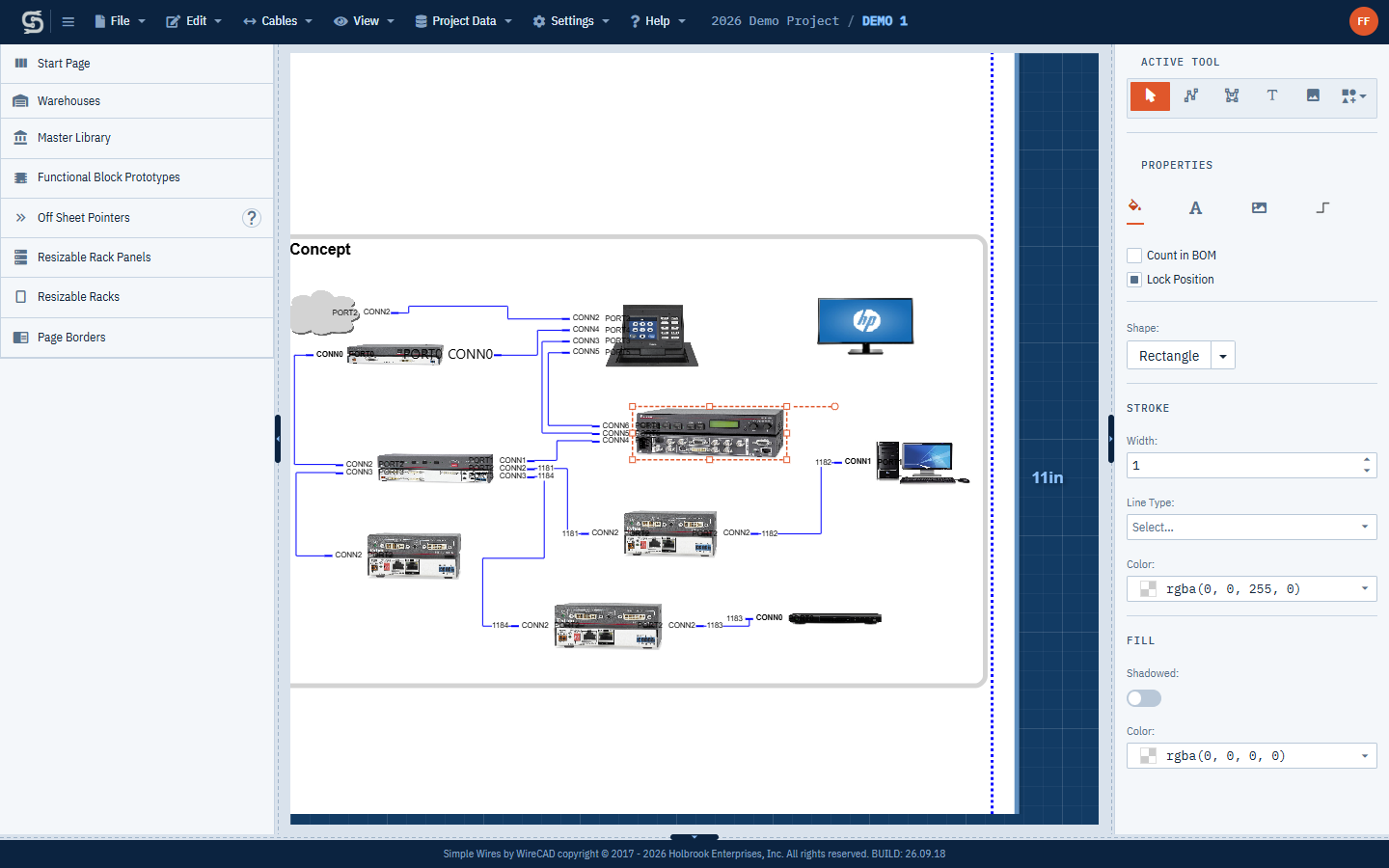
Where the theme applies
Your theme applies to the drawing editor, the Projects Dashboard, the pages you reach from the dashboard, such as My Team, Billing and Edit Profile, and the forum. The forum follows whatever you choose here; it has no separate setting.
In the editor, the theme changes the space around your drawing sheets, the selection highlight, and the page-size labels beside each sheet. The sheet itself stays white, and the blocks, cables, text and colors you draw don’t change.
Scrollbars follow the theme as well. Each theme has its own style: a wide rounded bar in Workshop, a slim one in Paper, a bar in a dark groove in Studio, and a square-cornered one in Blueprint. The bar is a soft shade of the theme’s highlight color, and turns the full color when you point at it. In Firefox, scrollbars take the theme’s colors but keep Firefox’s own shape. The forum keeps your browser’s standard scrollbars.
Your choice is remembered in this browser
Simple Wires saves your theme in a cookie in your browser, not in your account. This means:
- The theme stays the same when you sign out and back in on the same browser.
- Other browsers and computers keep their own setting. Choose a theme on each one.
- If you clear your browser’s cookies, Simple Wires goes back to Blueprint.
If you have another Simple Wires tab open, it switches to the new theme the next time it loads a page.
Switching themes with unsaved changes
Changing the theme reloads the page. If you’re in the editor and the drawing has unsaved changes, your browser asks whether you want to leave the page:
- If you leave, the theme switches and your unsaved changes are lost.
- If you stay, you keep your changes and your current theme.
To be safe, save the drawing before you change themes. Use File > Save or press Ctrl+S.
Printing and exporting
Themes don’t affect what you print or export. Exports always use a white page with black page-size labels, whichever theme you’re using. For more, see Printing and Exporting.