Drawings and the Start Page
A project holds any number of drawings. The Start Page is where you see them, create new ones, and open, rename, copy, move or delete them. This page also covers saving, Save As, and recovering a drawing whose save didn’t reach the server.
The Start Page
When you open a project from the Projects Dashboard, it opens on the Start Page. To come back to it from a drawing, do any of these:
- Click the Simple Wires logo at the top left.
- Click the menu icon next to the logo.
- Choose View > Start Page.
- Click Start Page at the top of the left pane.
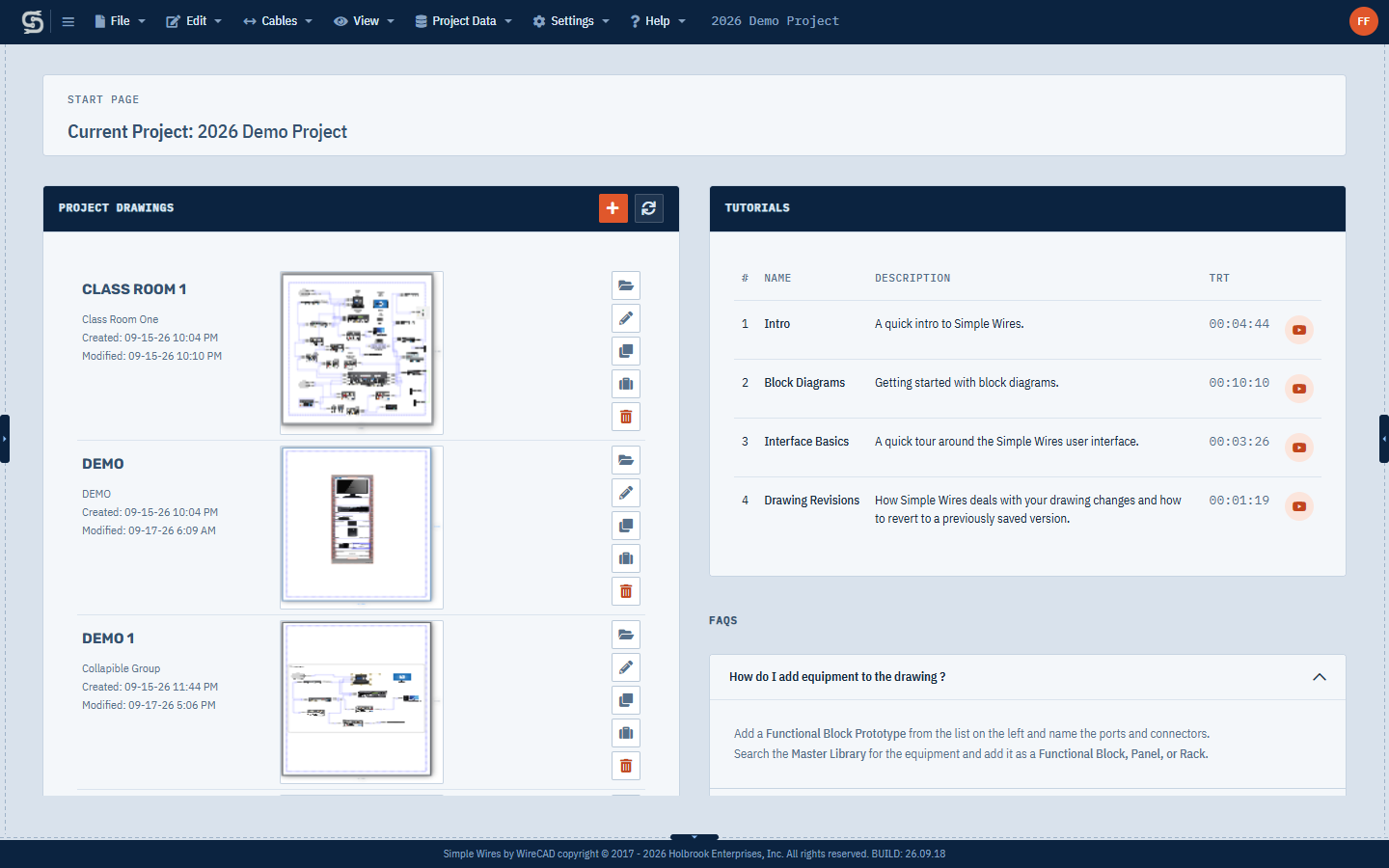
The top of the page shows Current Project and the project name. If you can only view the project, [View Only] follows the name. If you are on a team, your User Role is shown too.
The page has four parts:
- Project Drawings: the project’s drawings in name order.
- This Project: counts for the whole project, and what’s left to finish.
- Get Going: shortcuts to the first things you do in a project.
- FAQs: answers to common questions.
The Project Drawings list
Each drawing shows its name, description, Created and Modified dates, and a preview of the drawing as it was last saved. The buttons beside each drawing are:
| Button | What it does |
|---|---|
| Open this drawing (folder) | Opens the drawing in the editor |
| Rename this drawing (pencil) | Changes the name and description |
| Copy this drawing to another project | Puts a copy in another project |
| Move this drawing to another project (suitcase) | Moves the drawing to another project |
| Delete this drawing (trash) | Deletes the drawing |
Only Open this drawing is shown if you can only view the project. The Free plan shows only Open this drawing too.
The buttons in the Project Drawings heading are Add a New Drawing (+) and Refresh this list. Use Refresh this list to pick up drawings that other people have added.
Each plan allows a set number of drawings per project (see Billing and Plans). The Free plan allows one: if a project has more, the Start Page shows only the first and displays a message asking you to upgrade.
Creating a drawing
- On the Start Page, click Add a New Drawing (+). In the editor, choose File > New ….
- In New Drawing Name, enter a name and click Next.
- Enter a description (optional) and click Next.
The drawing is saved and opens in the editor.
A project can hold as many drawings as the plan of the person who owns it allows, including any drawings add-ons. Once it’s full, Add a New Drawing shows Drawing limit reached instead of the dialogs. Delete a drawing you no longer need, or raise the limit with an upgrade or a drawings add-on. On the Free plan the limit is one drawing, so open the existing drawing instead.
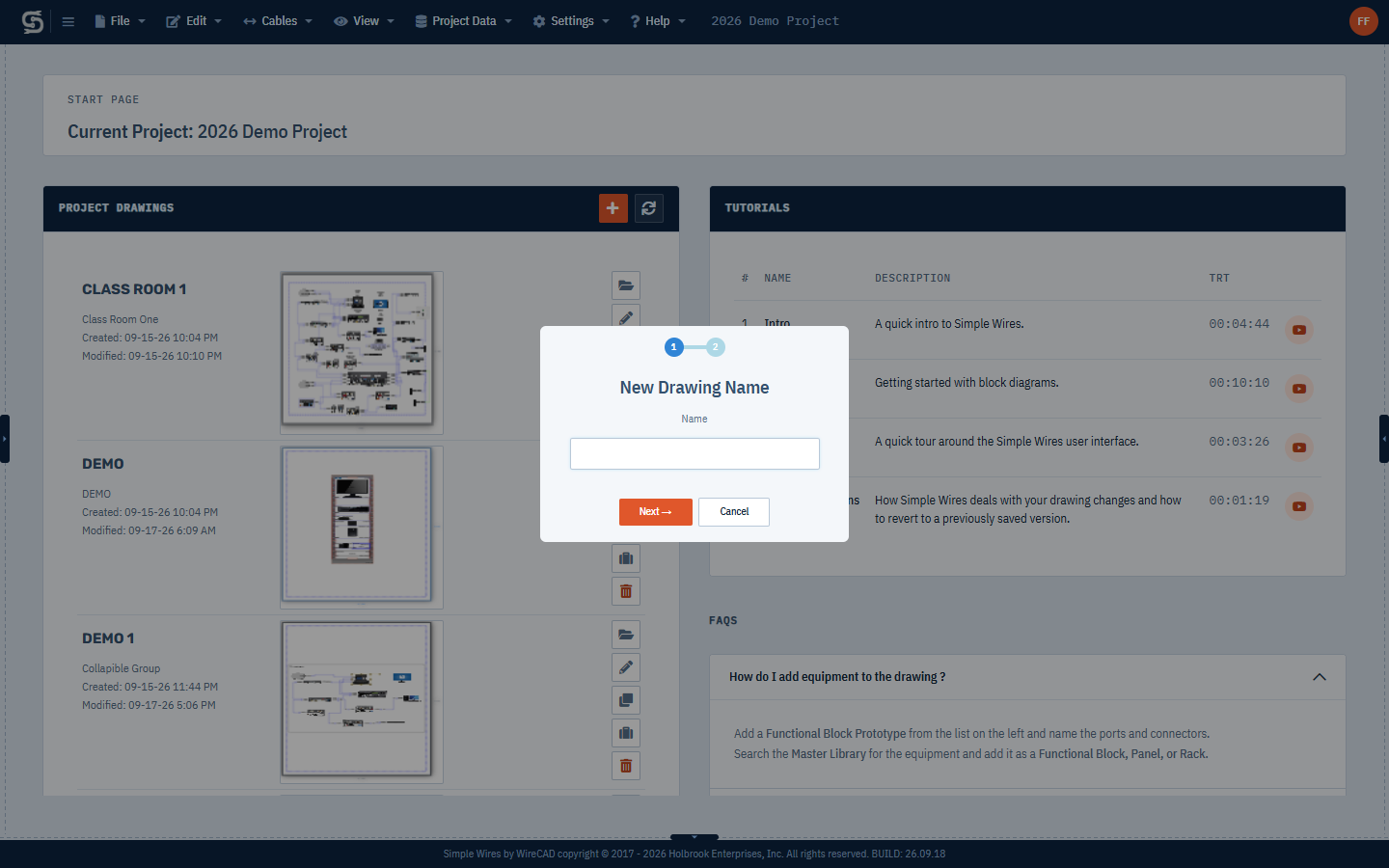
Drawing names must be unique within the project and can’t contain these characters: . ' / \ % ? & * + < > : ;
A new drawing takes its page size, margins, and stroke and fill settings from your new drawing settings. Its text style and cable behavior come from the current editor settings. To change them for one drawing, see Page Setup and Drawing Settings.
If the drawing you have open has unsaved changes, Simple Wires asks Save Your Work? first. Click Yes to save it before creating the new drawing.
Opening a drawing
On the Start Page, click the drawing’s name or preview, or click Open this drawing. From inside the editor, choose File > Open and pick the drawing from the list.
The title bar shows the project and drawing name.
When you open a drawing saved by a much older version of Simple Wires, you may be asked to Switch Drawing Version. Click Switch to update the drawing; blocks may change position. Click Leave it alone to open it unchanged.
Opening another drawing doesn’t ask you to save the one you are leaving. Changes save automatically about three seconds after your last edit, so if you switch straight after a change, save first.
Saving a drawing
Press Ctrl+S, or choose File > Save (Ctrl + S). While the save is in progress the title bar shows Saving changes…, and a short message confirms when it is done.
On every plan, Simple Wires saves automatically about three seconds after you stop making changes. Opening one of the Project Data grids also saves the drawing first.
Each save updates the preview on the Start Page and records a revision. See Drawing Revisions.
If you can only view the project, Save isn’t available.
Save As
File > Save As … saves the open drawing as a new drawing in the same project.
- Choose File > Save As ….
- In Save Drawing As, enter the new name and click Next.
- Enter the description and click Next.
The new drawing opens in the editor. The original stays as it was last saved.
Off sheet pointers in the new drawing that pointed back at the original drawing are updated to point at the new one, and so are pointers in other drawings of the project. See Off Sheet Pointers.
On the Free plan, Save As is refused because it would add a second drawing to the project.
Renaming a drawing
- On the Start Page, click Rename this drawing. In the editor, choose File > Rename ….
- In Drawing Name, enter the new name and click Next.
- Change the description if you want, and click Next.
The same naming rules apply as for a new drawing.
Copying or moving a drawing to another project
You can copy or move a drawing into another project that you can edit. This isn’t available on the Free plan.
- On the Start Page, click Copy this drawing to another project or Move this drawing to another project.
- In Select a Project, choose the destination project. Projects you can only view are marked VIEW ONLY! and can’t be used.
- Click OK.
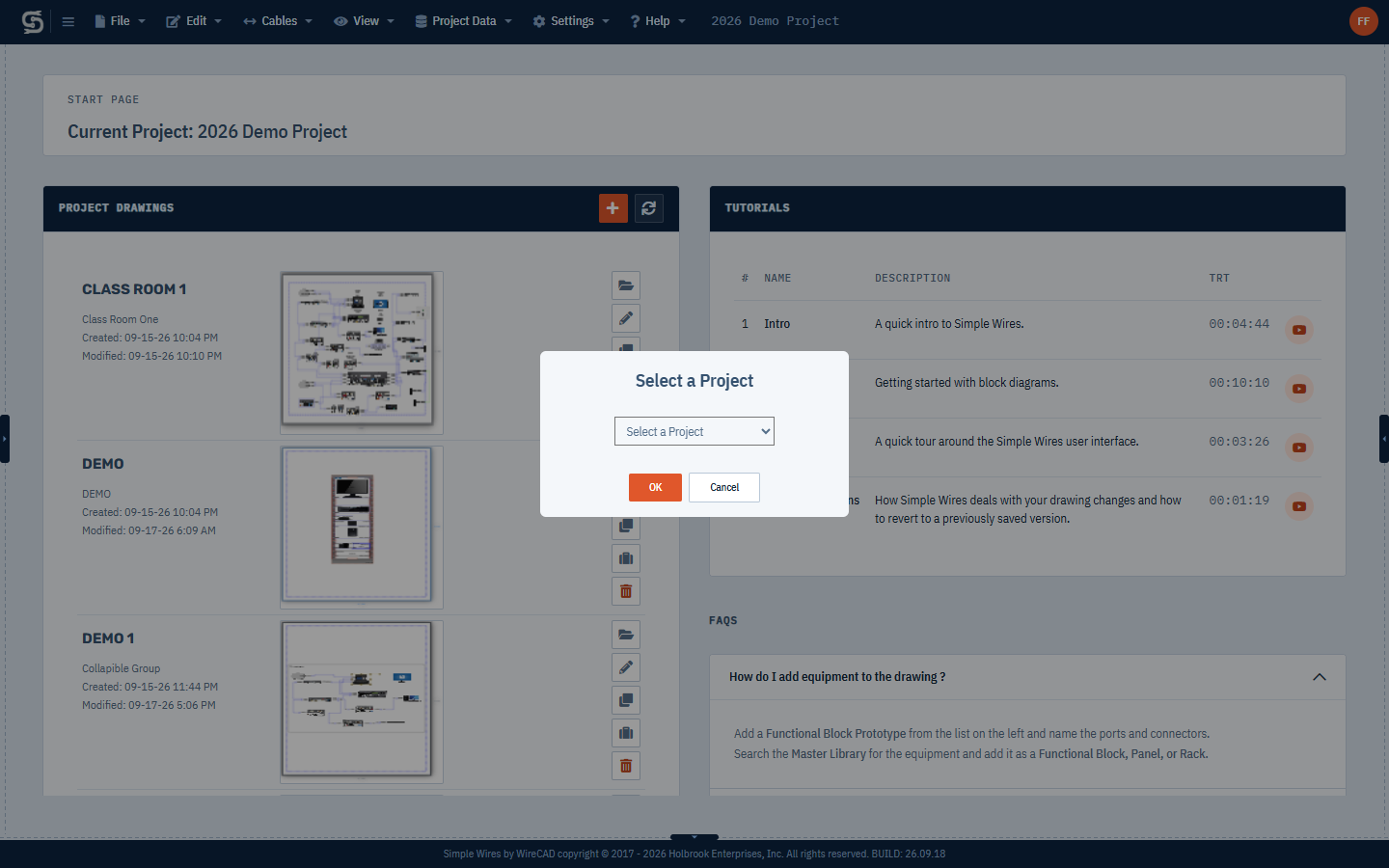
A copy is a new drawing in the other project, with today’s date as its created date. A moved drawing is removed from this project.
The drawing counts toward the other project’s drawing limit, so copying or moving into a project that’s already full is refused with a message.
You can’t copy or move a drawing into the project it is already in. To duplicate a drawing within a project, open it and use File > Save As ….
Deleting a drawing
- On the Start Page, click Delete this drawing. In the editor, choose File > Delete.
- Click Yes, delete it! to confirm.
A deleted drawing can’t be recovered, and its revisions go with it.
Recovering a drawing
Before each save, Simple Wires keeps a copy of the drawing in your web browser. If the save reaches the server, the copy is removed. If it doesn’t, for example because your internet connection dropped, you see the message “Drawing failed to save. We have created a backup locally.” and the copy stays.
The next time you open that drawing in the same browser, the Recover Drawing dialog appears. The server’s copy is loaded in the editor behind the dialog, and the copy kept in your browser is shown in Preview.
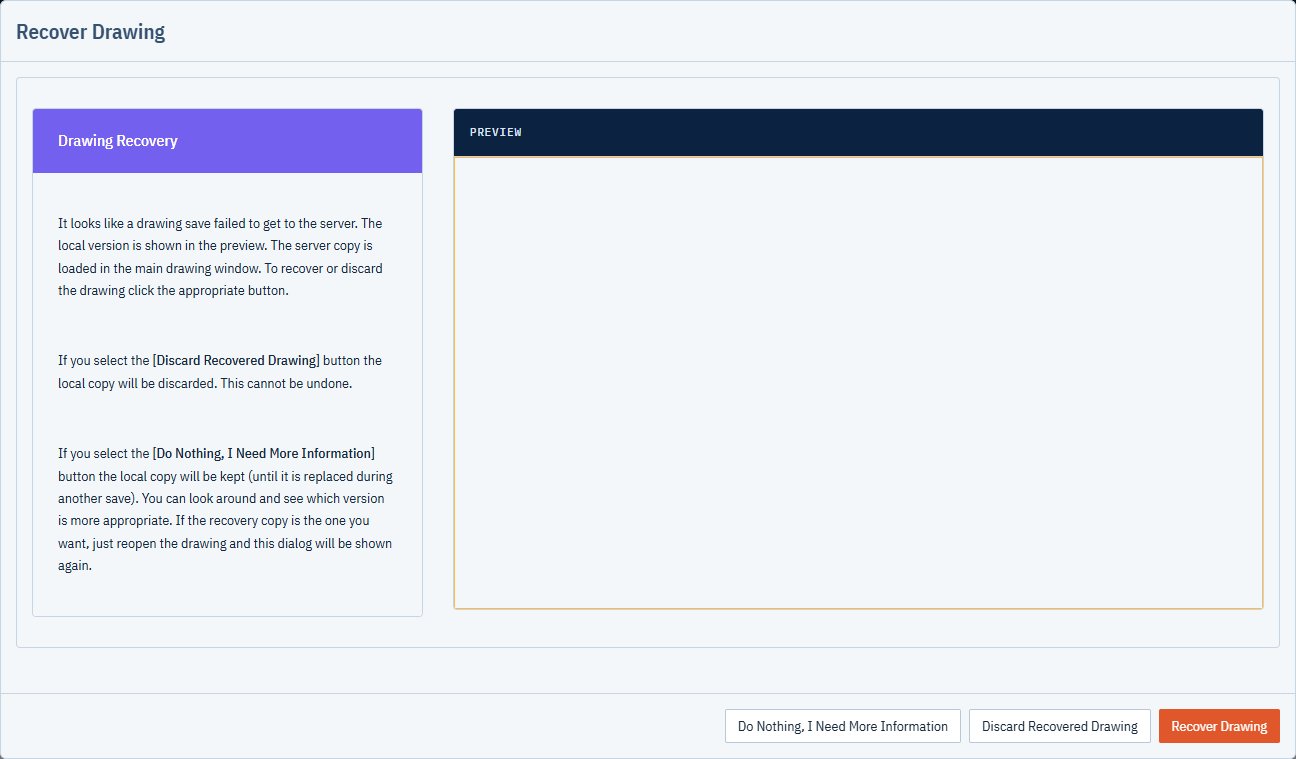
Choose one of:
- Recover Drawing: loads the browser’s copy into the editor and removes it from the browser. Save the drawing to store it on the server.
- Discard Recovered Drawing: removes the browser’s copy and keeps the server version. This can’t be undone.
- Do Nothing, I Need More Information: closes the dialog and keeps the browser’s copy. Look around the server version, then reopen the drawing to see the dialog again. The copy is replaced the next time you save this drawing.
The copy lives only in the browser on the computer where the save failed. Opening the drawing on another computer or in another browser won’t offer it.
This Project
This Project sums up the project’s drawings as they were last saved. It appears once the project has a drawing.
- Drawings: how many drawings the project has, and how many its plan allows (for example 7 of 10).
- Devices: how many pieces of equipment the project contains. A block on a schematic and its panel in a rack elevation are the same device, so they count once. See Devices.
- Blocks: functional blocks on all the drawings.
- Racks: racks on all the drawings.
- Cables: cables on all the drawings.
Below the counts, it tells you how many cables aren’t numbered yet and how many blocks, panels and racks aren’t named yet, when there are any. The last line names the drawing that was saved most recently, and when.
The counts don’t follow your edits as you make them. They’re worked out when the project opens, and again when you click Refresh this list. On the Free plan they cover only the drawing the Start Page shows.
Get Going
Get Going links to the first things you do in a project:
- Add a drawing: the same as Add a New Drawing (+). It isn’t shown if you can only view the project.
- Using the Master Library: opens the help on finding equipment and adding it as a block, panel or rack. See Master Library and My Warehouse.
- Draw a cable: opens the help on drawing cables.
- Getting started guide: opens Getting Started.
- Keyboard shortcuts: opens Keyboard Shortcuts.
FAQs
The FAQs panel answers common questions. Click a question to expand it:
- How do I add equipment to the drawing?
- How do I draw a cable?
- I dropped equipment in a rack and it stuck. How do I unstick it?
- When does the watermark go away?
- Why aren’t my wires sticking when I move a block?
- Why are my rack panels not populating in my bill of materials?
- I have a Paid subscription. Can I share a project with a Free subscription?
For more answers, see FAQ and Troubleshooting.