Printing and Exporting
Print a drawing, or save it as a PDF, DWG, PNG or SVG file to share with people who don’t use Simple Wires. Equipment, cable and bill of materials lists export to Excel.
Before you print or export
- Print, PDF and DWG use the sheet from Settings > Page Settings. Set the page size and margins first, and keep the drawing inside the margins. See Page Setup and Drawing Settings.
- The drawing commands are on the File menu while a drawing is open. Export to Excel appears on the File menu when a Project Data grid is open instead.
- If your team role is Viewer, the print and export commands are hidden.
- On a paid plan, Print, Export to PDF and Export to DWG also add the drawing’s equipment (manufacturer, model and ports, nothing that identifies you) to the shared Master Library, unless your account has turned that off. See Contributing automatically.
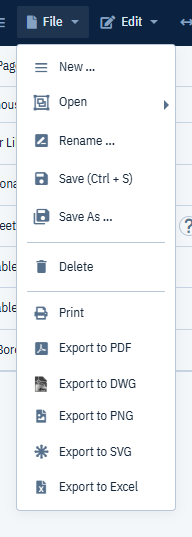
What each output includes
| Command | Area | File |
|---|---|---|
| The whole sheet | Sent to the browser’s print dialog | |
| Export to PDF | The area inside the margins, placed on a page of the sheet size | drawing name.pdf |
| Export to DWG | The area inside the margins | drawing name.dwg |
| Export to PNG | Everything in the drawing, on a white background | SimpleWires Export.png |
| Export to SVG | Everything in the drawing, on a transparent background | SimpleWires Export.svg |
The page outline, the margin rectangle, the grid and the collapse buttons on collapsible groups never appear in the output.
What your plan includes
| Command | Free plan | Paid plan, subscription not active | Active paid subscription |
|---|---|---|---|
| Watermarked | Watermarked | Yes | |
| Export to PDF | Not available | Watermarked | Yes |
| Export to DWG | Not available | Not available | Yes |
| Export to PNG | Watermarked | Watermarked | Yes |
| Export to SVG | Watermarked | Watermarked | Yes |
| Export to Excel | Yes | Yes | Yes |
When a command isn’t available on your plan, Simple Wires shows “This function is not available in the Free version. Please upgrade.” See The trial watermark and Billing and Plans.
- Open the drawing.
- Click File > Print.
- In your browser’s print dialog, choose the printer, or choose to save as PDF.
- Set the paper size and orientation to match your page settings, and check the scaling, then print.
Simple Wires sends only the drawing’s sheet to the printer; the menus and panes aren’t printed. Anything outside the sheet isn’t printed. The scale, paper and printer options come from your browser.
Export to PDF
File > Export to PDF creates a vector PDF. Simple Wires takes the area inside the margins, places it on a page of the size and margins set in Page Settings, and downloads the file named after the drawing. A page wider than it is tall is saved in landscape orientation.
- Open the drawing and check the page settings.
- Click File > Export to PDF.
- Wait while the PDF is prepared. It downloads to your browser’s downloads folder.
The PDF isn’t available on the Free plan.
DWG
File > Export to DWG creates an AutoCAD DWG file from the area inside the page margins, for use in AutoCAD and other CAD software. It isn’t available on the Free plan or before your subscription is active.
- Open the drawing and check the page settings.
- Click File > Export to DWG.
- In the Export to DWG Settings dialog, choose a Scale.
- Click Do It!. The file downloads named after the drawing, for example
Rack Room.dwg.
If the conversion fails you see “Export failed”. Check your internet connection and try again.
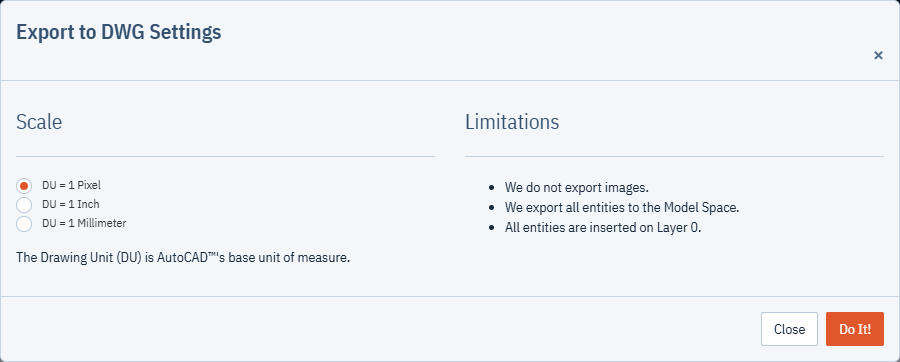
Scale and drawing units
The Drawing Unit (DU) is AutoCAD’s base unit of measure. The scale decides how many drawing units one distance on your Simple Wires page becomes:
| Scale | Use it when |
|---|---|
| DU = 1 Pixel (default) | You’ll scale the drawing yourself in CAD. Each screen pixel of the page becomes one drawing unit. |
| DU = 1 Inch | Your Page Unit of Measure is in and you want the DWG to measure at paper size in inches. |
| DU = 1 Millimeter | Your Page Unit of Measure is mm or cm and you want the DWG to measure at paper size in millimeters. |
To make the DWG match the paper size you picked, choose the scale that matches the page’s unit of measure.
Limitations
- Images aren’t exported. Logos and equipment photos are left out of the DWG.
- All entities are exported to Model Space; no paper space layouts are created.
- All entities are placed on Layer 0. Move them to your own layers in CAD if you need to.
Export to PNG
File > Export to PNG saves the whole drawing as a PNG image on a white background, named
SimpleWires Export.png. It includes everything in the drawing, not just the sheet, so it’s useful for
dropping a diagram into a document or email.
Export to SVG
File > Export to SVG saves the whole drawing as a scalable vector graphic on a transparent background,
named SimpleWires Export.svg. Use it when you want to edit the diagram in a vector drawing program or
place it in a web page without losing sharpness.
Export to Excel
The Project Data grids export to an Excel workbook.
- Open Project Data and choose Equipment, Bill of Materials, Cables, or Drawings and Revisions.
- Click File > Export to Excel, or the export button on the grid.
The file is named after the project and the grid, for example Project Cables List, Project Equipment List, Project BOM or Project Drawings List. See Project Data Grids, including the Equipment, Cables and Bill of Materials grids.

The trial watermark
If your account is on the Free plan, or your paid subscription isn’t active yet, Simple Wires adds a large light gray “Simple Wires” watermark across the sheet in printed and exported output. The watermark never shows in the editor itself, and Excel exports don’t have one.
The watermark is removed when your subscription is active, which happens once you choose a paid plan and enter your payment details. After upgrading, reopen the project so the editor picks up the change. See Billing and Plans.