Project Data Grids
The Project Data menu opens grids that collect data from every drawing in the project: the equipment you have placed, the cables you have drawn, and a bill of materials. Use them to check the design, find an item, and export lists to Excel.
The grids read the saved drawings. When you open a grid, Simple Wires saves the drawing you are working on first.
| Menu item | Grid |
|---|---|
| Project Data > Equipment | Equipment |
| Project Data > Cables | Cables |
| Project Data > Bill of Materials | Bill of Materials |
| Project Data > Signal Types | See Signal Types |
| Project Data > Drawings and Revisions | See Drawing Revisions |
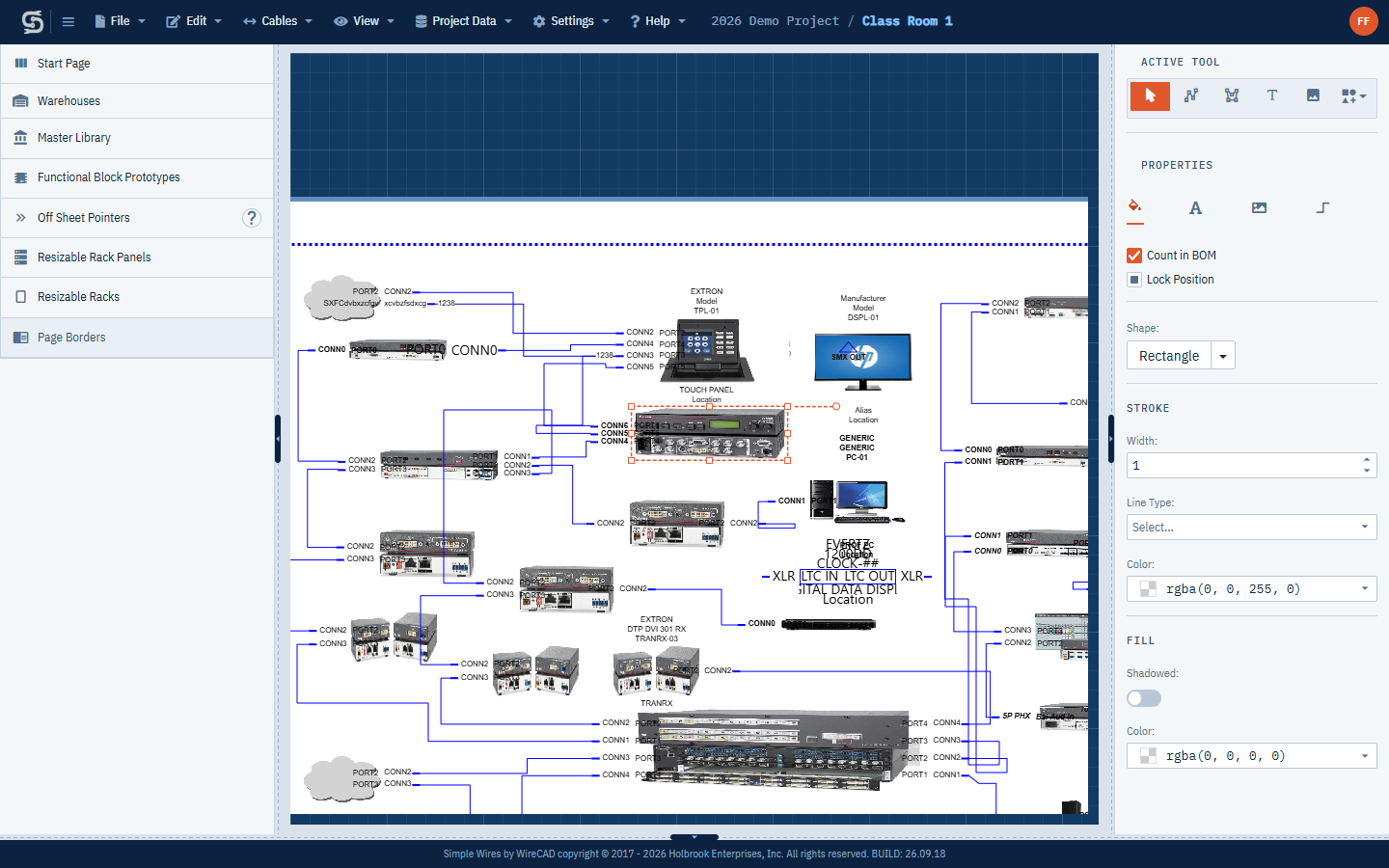
A grid replaces the drawing and hides the side panes. To go back to a drawing, choose it from File > Open, or click Show Me on a row.
Working with the grids
The Equipment, Cables and Bill of Materials grids share the same tools.

- Sort
- Click a column header to sort by that column. Click it again to reverse the order.
- Filter
- Type in the filter row just below the column headers to show only matching rows. Each column has its own filter cell.
- Search
- Type in the Search… box at the top right to find rows that contain the text in any column.
- Group
- Drag a column header into the bar above the grid (Drag a column header here to group by that column). Rows are grouped under each value of that column; click a group row to expand or collapse it. Drag more headers to group within groups. To remove a grouping, drag the header back into the header row.
- Resize columns
- Drag the edge of a column header.
- Choose columns
- Click the column chooser at the top right of the grid and drag a column out of the grid to hide it, or back in to show it again. Use it to put away project tag columns you don’t need. What you hide is remembered for the project on this computer.
- Scroll sideways
- A grid with a lot of columns scrolls horizontally. Use the scrollbar below the rows, or hold Shift and scroll the mouse wheel.
- Page
- Use the page numbers at the bottom of the grid to move between pages, and the page size selector to show 30, 50 or 100 rows per page.
- Export to Excel
- Choose File > Export to Excel, or click the Export all data button at the top right of the grid. Your browser downloads an Excel file named after the project, such as Project Name Cables List. Whatever columns are showing are exported, project tag columns among them.
Show Me
The Equipment and Cables grids have a Show Me button at the start of each row. Click it to open the drawing that holds that item. Simple Wires centers the block or cable on screen and selects it.
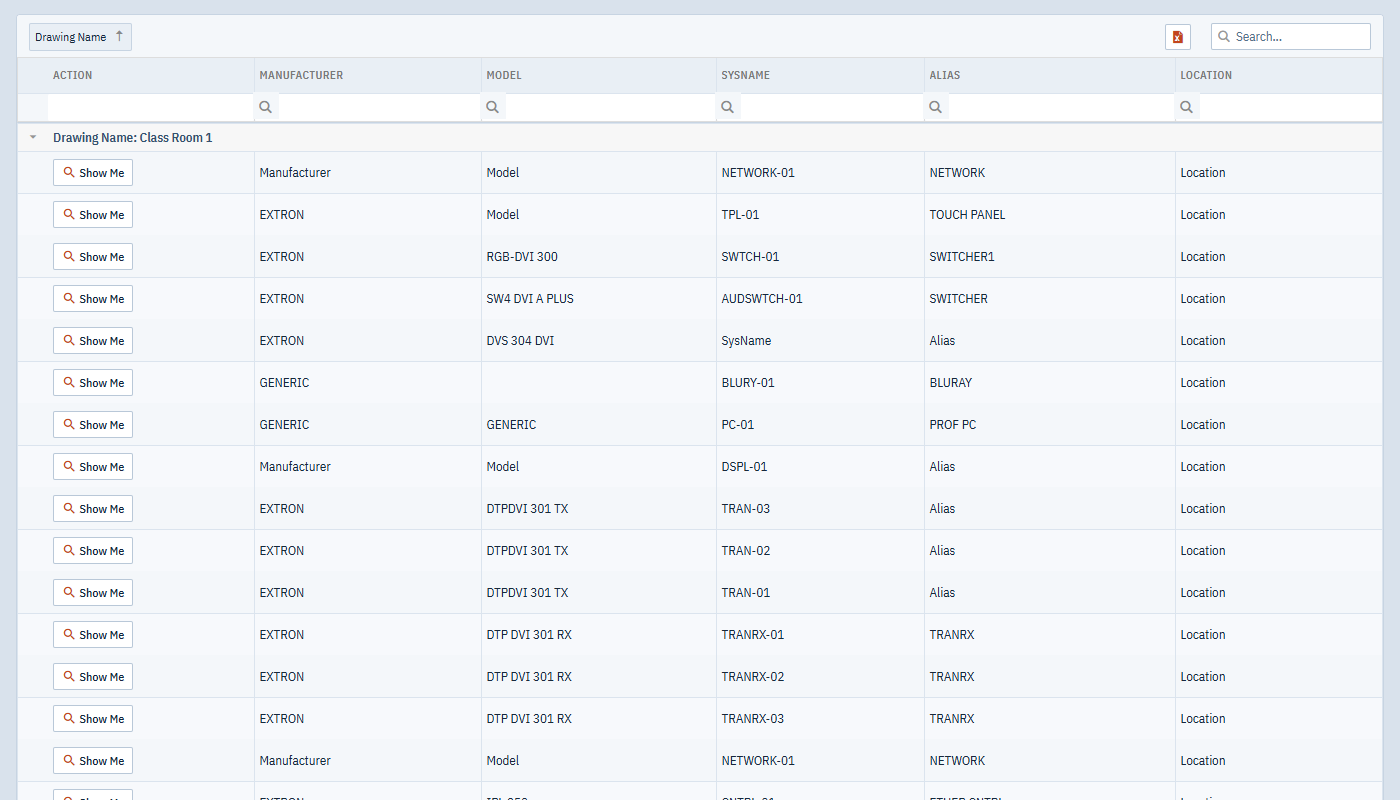
Equipment
Project Data > Equipment lists every block in every drawing of the project, including racks and rack panels. Each row shows:
| Column | Contents |
|---|---|
| Action | The Show Me button. |
| Linkage | The device code, if the block is part of a device. A code shared by several rows is boxed in a colour of its own. |
| Objects | How many objects draw this equipment. 1 means the block is on its own. |
| Manufacturer | The block’s manufacturer. |
| Model | The block’s model. |
| SysName | The block’s system name. |
| Alias | The block’s alias. |
| Location | The block’s location. |
| Count In BOM | Whether the block is counted in the Bill of Materials. On a device row it applies to the whole device. |
| Drawing Name | The drawing the block is on. |
Any project tag that applies to blocks follows these as a further column. See Extended Data.
Click the arrow at the start of a row to list the other objects in the same device, each with its own Show Me button. See Devices in the Equipment grid.
Editing the equipment list
If you can edit the project, you can correct equipment details in the grid instead of opening each drawing. You can edit Manufacturer, Model, SysName, Alias, Location, Count In BOM and the project tag columns.
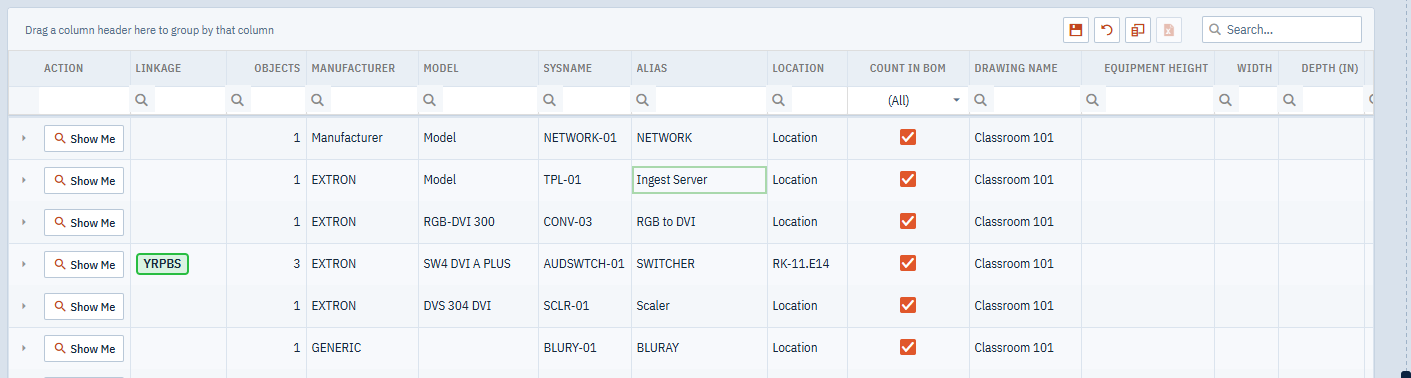
- Click a cell and type the new value. Edit as many cells, in as many rows, as you need. Changed cells are highlighted until you save.
- Click Save changes at the top right of the grid to save them all at once, or Revert changes to throw them away.
Each drawing involved is saved once, however many cells changed on it. The cables connected to each block pick up the new text, so the Cables grid stays in step, and anyone with one of those drawings open sees it update.
If the row is part of a device, the edit reaches every object in the device, on every drawing. Typing a Location on a racked panel can move it; see Location and racks. When an edit reaches more than its own row, or something fails, the Changes window lists what happened to each object. See The Changes report.
If someone else saved one of the drawings after you opened the grid, the changes to that drawing aren’t saved. The other drawings are. Reopen the grid and make those changes again.
You can’t edit Linkage, Objects or Drawing Name. To rename a drawing, see Drawings and the Start Page.
Cables
Project Data > Cables lists every cable in every drawing, with the full detail of both ends. Each row includes:
- Drawing Name, Cable No, Signal Type and Length.
- The cable type: Cable Manu and Cable Type.
- The From end: manufacturer, model, system name, alias, location, port name and port connector.
- The To end: the same details for the destination.
- Is Off Sheet Pointed and Is Off Sheet Pointed Right.
- Any project tag that applies to cables. See Extended Data.
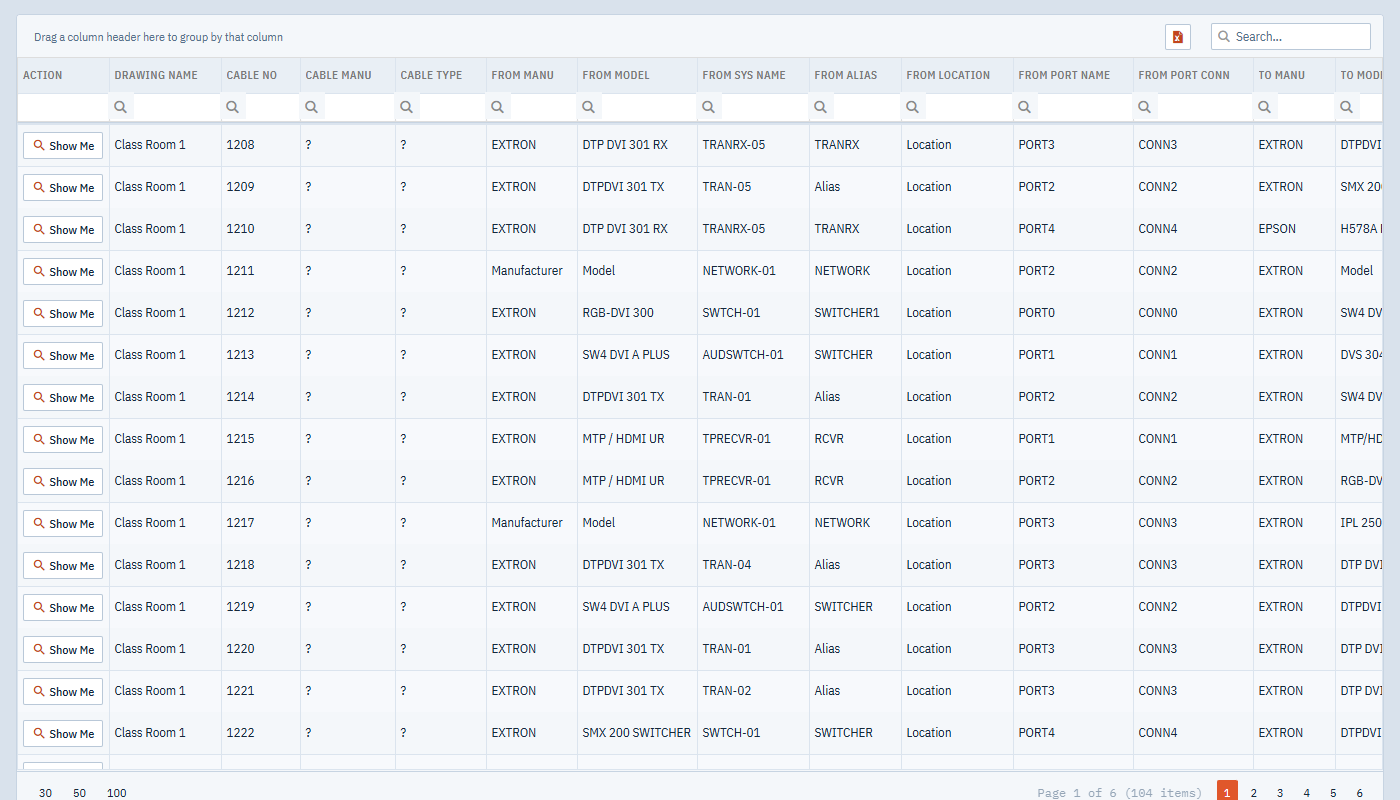
A cable that runs between drawings through off sheet pointers appears twice, once for each drawing. Both rows have Is Off Sheet Pointed checked. The row for the destination drawing also has Is Off Sheet Pointed Right checked. To list each cable once, filter Is Off Sheet Pointed Right to unchecked.
The grid opens ungrouped each time.
Editing cables
If you can edit the project, you can change these columns in the Cables grid, the same way as in the equipment list: edit the cells, then click Save changes.
| Column | What an edit does |
|---|---|
| Cable No, Length | Sets the cable’s number or length. |
| Signal Type | Changes the signal type, and with it the cable’s colour, width, line type and cable type, unless you have set those yourself. |
| Cable Manu, Cable Type | Sets the cable type. A cable type typed here stays when the signal type is applied again. |
| From Port Name, From Port Conn, To Port Name, To Port Conn | Renames the port, or its connector, on the block at that end. Every cable on that port shows the new name. |
| Project tags | Sets the tag’s value on the cable. |
The other From and To columns show the equipment at each end. To change them, edit the equipment instead.
A cable that runs between drawings through off sheet pointers is one cable. An edit to either of its rows changes both halves.
Bill of Materials
Project Data > Bill of Materials counts what the project needs. The grid is read-only and opens grouped by Item Class. Each row shows Manufacturer, Model and Item Count.
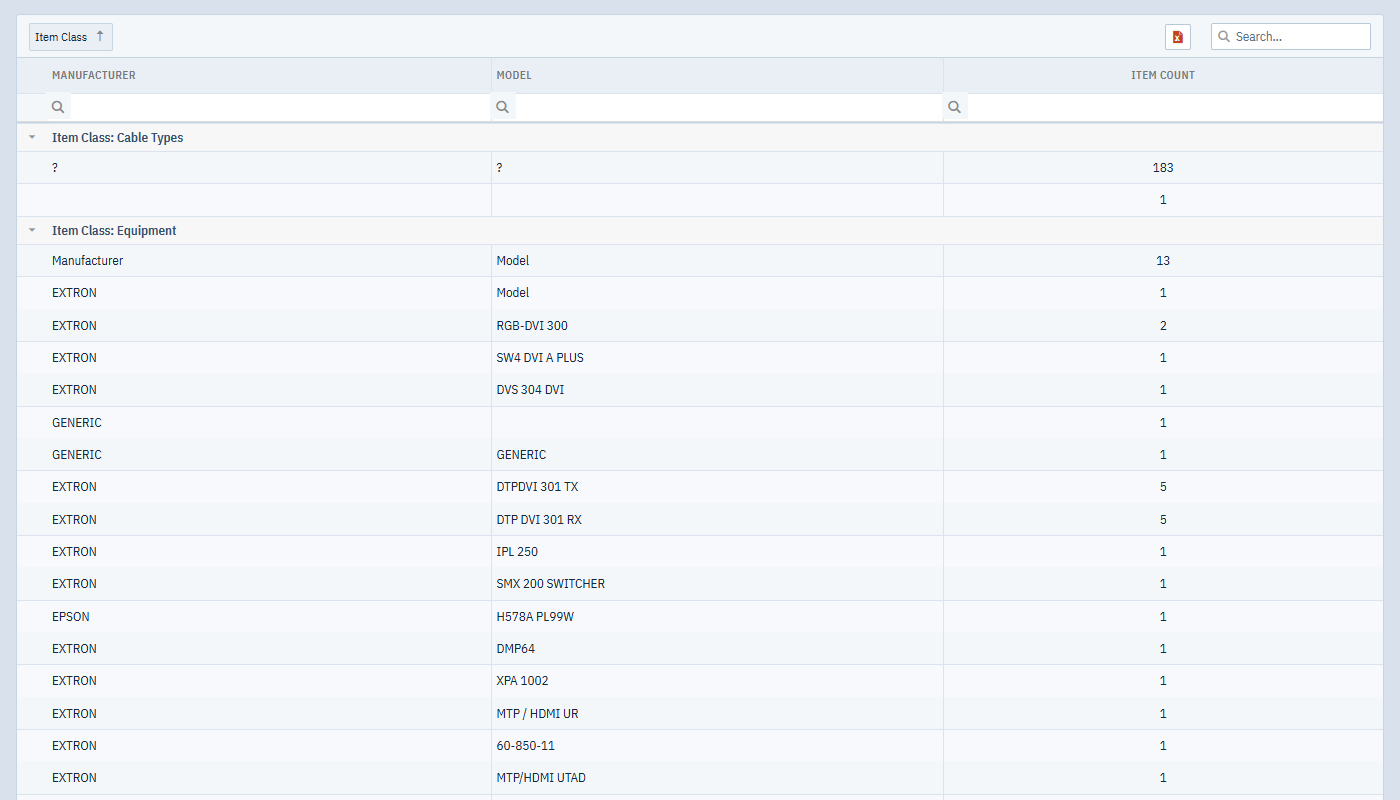
| Item Class | What is counted |
|---|---|
| Equipment | Blocks, racks and rack panels with Count in BOM turned on, grouped by manufacturer and model. A device is counted once, however many drawings show it. Off sheet pointers are never counted. |
| Cable Types | Cables grouped by cable manufacturer and type. If you have entered cable lengths, Item Count is the total length; a cable without a length counts as 1. |
| From Connectors | The connector at the From end of each cable, grouped by connector name. |
| To Connectors | The connector at the To end of each cable, grouped by connector name. |
A cable that runs through off sheet pointers is counted once.
The Bill of Materials is built fresh from the saved drawings each time you open it.
Why rack panels are missing from the BOM
Rack panels are placed with Count in BOM turned off, so they don’t appear under Equipment until you turn it on. Blocks and racks are placed with it turned on.
A panel that belongs to the same device as a block is already counted through the block, so it needs nothing more. The steps below are for a panel on its own.
To include a rack panel:
- Open the drawing and select the rack panel.
- On the General tab of the right pane, turn on Count in BOM.
- Save the drawing, then open Project Data > Bill of Materials again.
The same checkbox removes any block from the count, and on a device member it removes the whole device. A block also needs both a manufacturer and a model to be counted. See Racks and Rack Panels.